
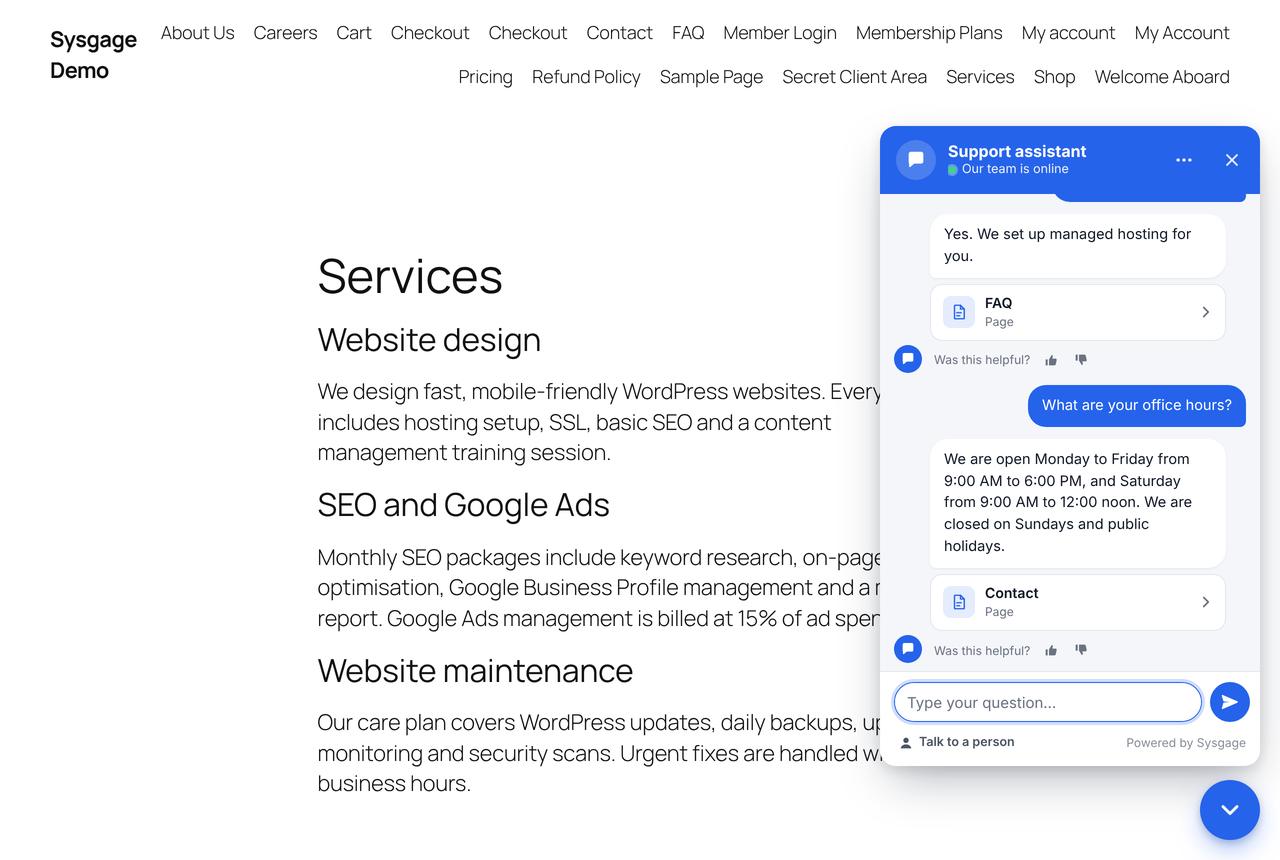
An AI support assistant that has read your website, answers visitors directly with links to the right page, and hands off to your team when a person is needed. Built to cost very little, with a free No-AI mode.
Screenshots
User guide
- Features Everything Sysgage AI Chat does, feature by feature.
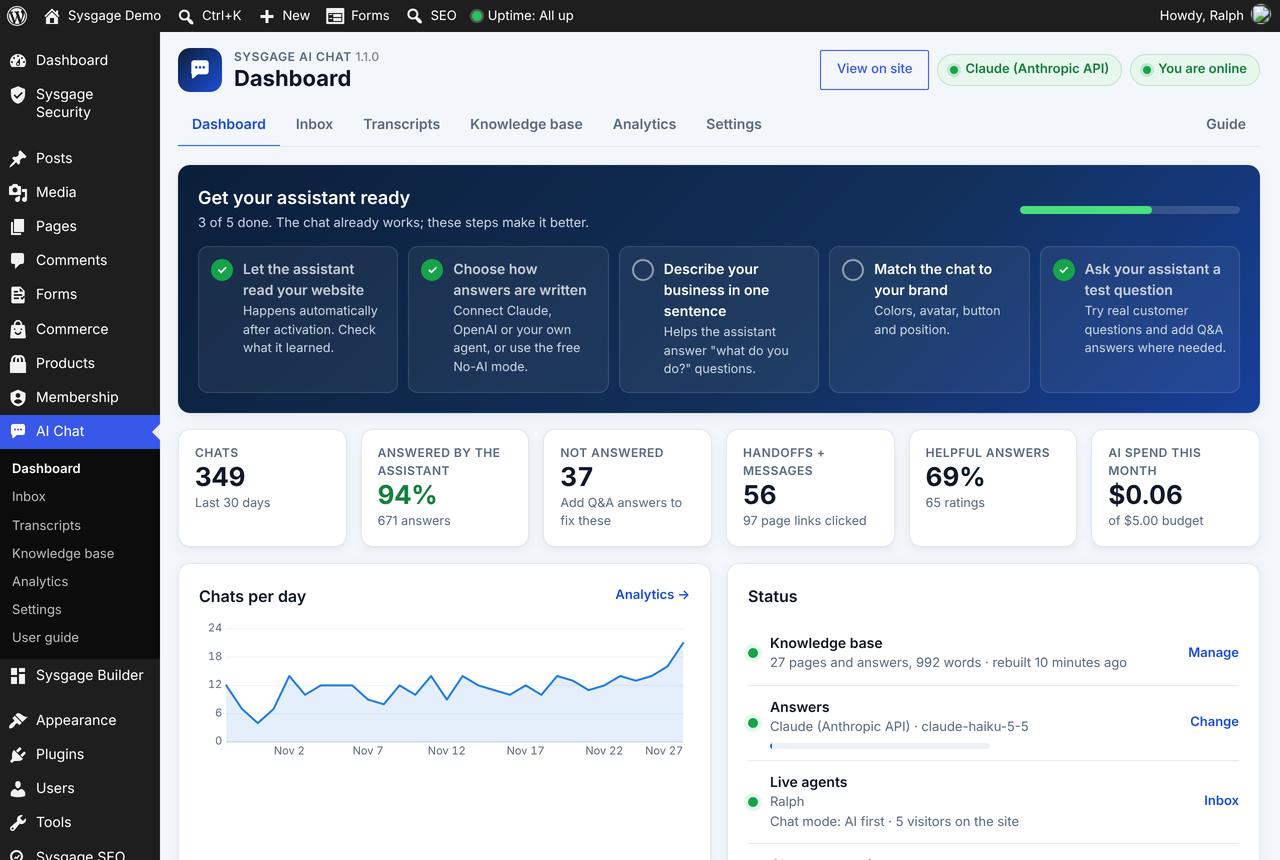
- Install and first steps Sysgage AI Chat puts a support assistant on your website that has read your whole site. Visitors type a question and get a direct answer taken from your…
- How answers are made (and what they cost) Every visitor question goes through these steps, cheapest first. The first one that has a good answer wins.
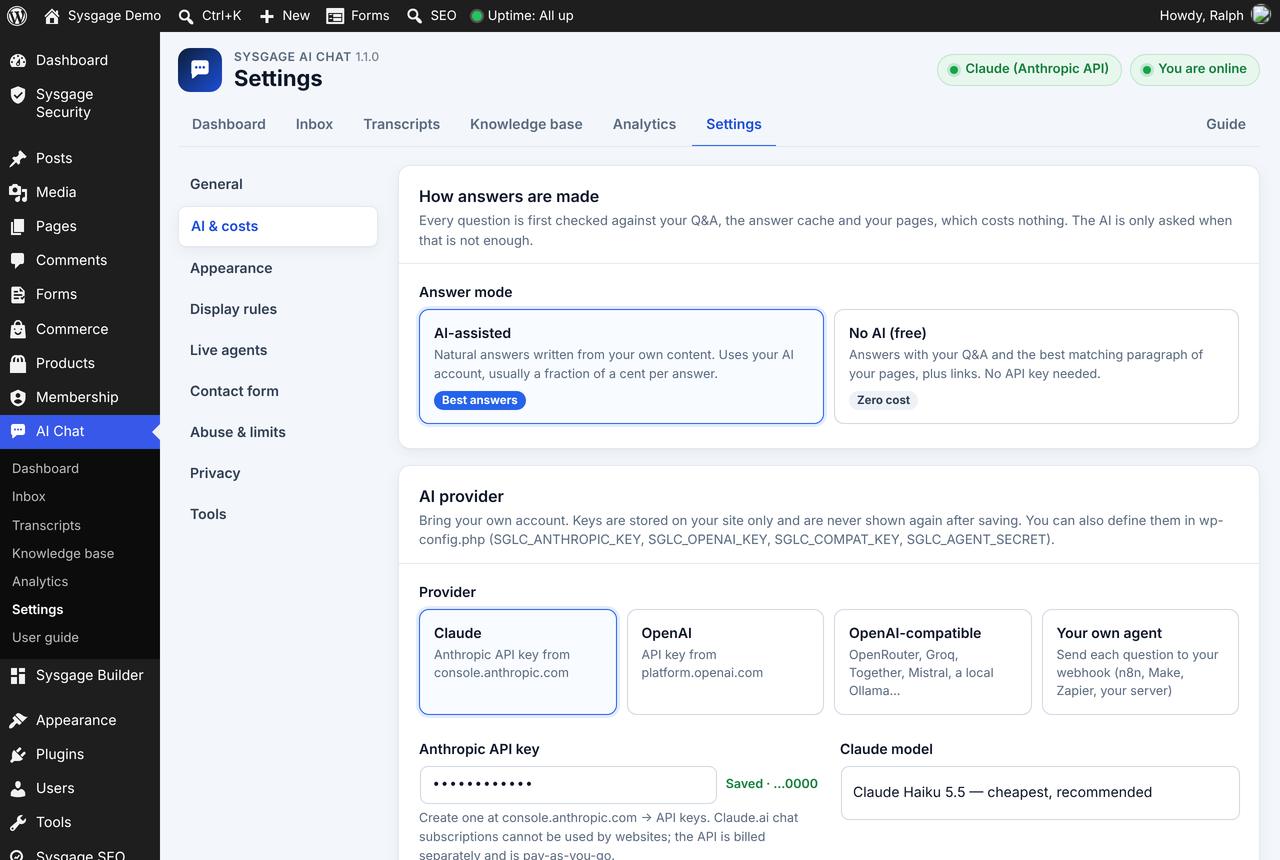
- Connect an AI provider Go to AI Chat → Settings → AI & costs.
- Teach the assistant: the knowledge base Go to AI Chat → Knowledge base.
- Q&A answers Q&A answers are exact answers you write for questions people ask often: refunds, delivery times, opening hours, prices that are not on a page. They always win over…
- Test your assistant Knowledge base → Test is a private playground. Ask questions like a customer would. Nothing is saved and your statistics are not affected.
- Make it look like your brand Settings → Appearance. The Live preview on the right updates as you change settings. On phones it appears below the settings.
- Where the chat appears Settings → Display rules
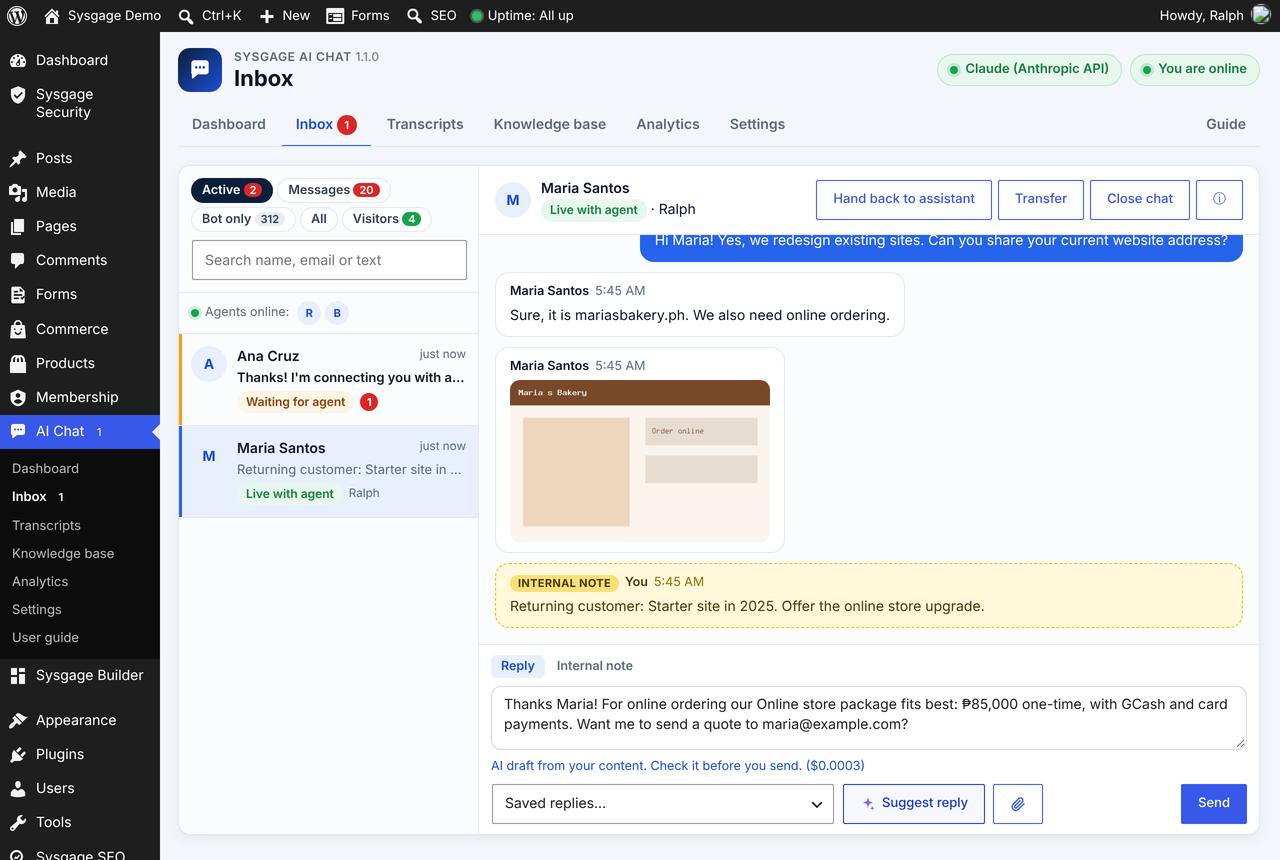
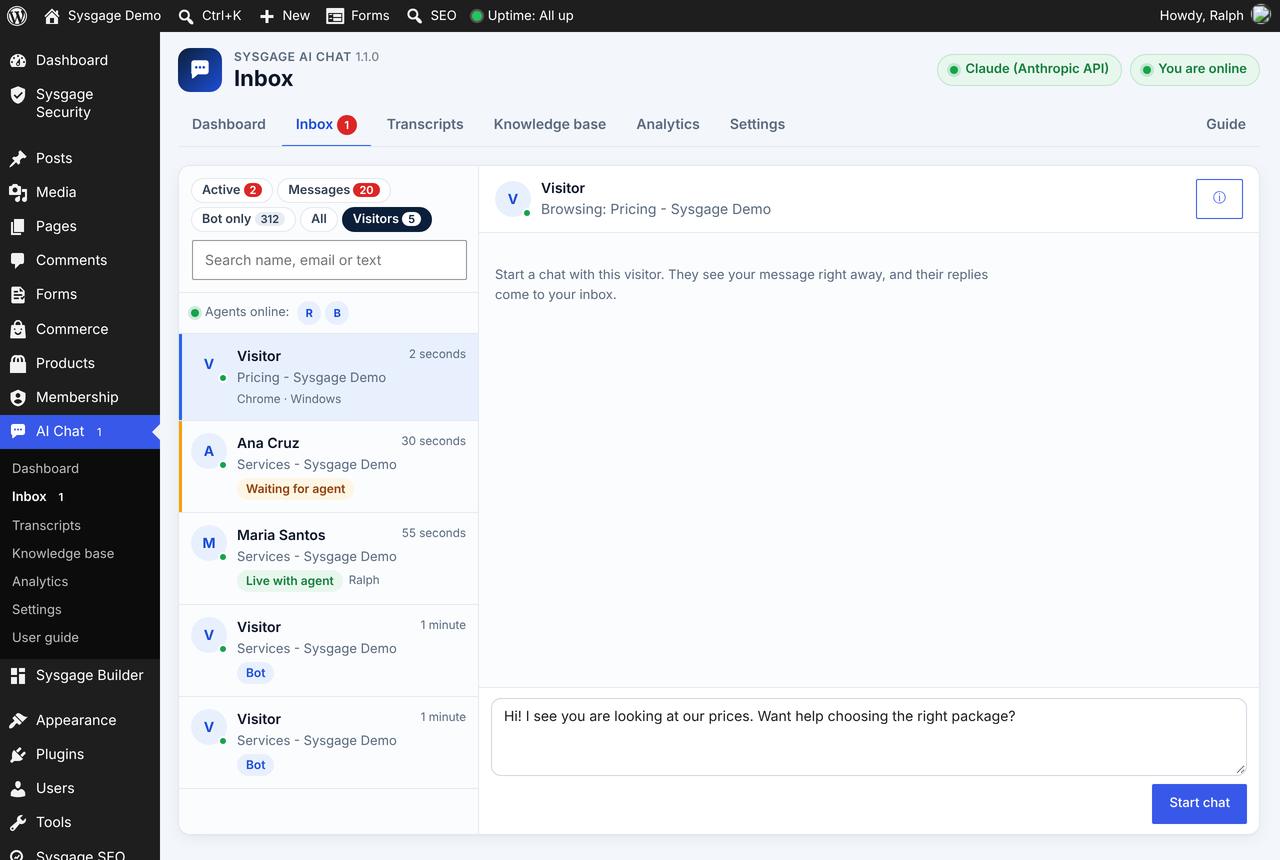
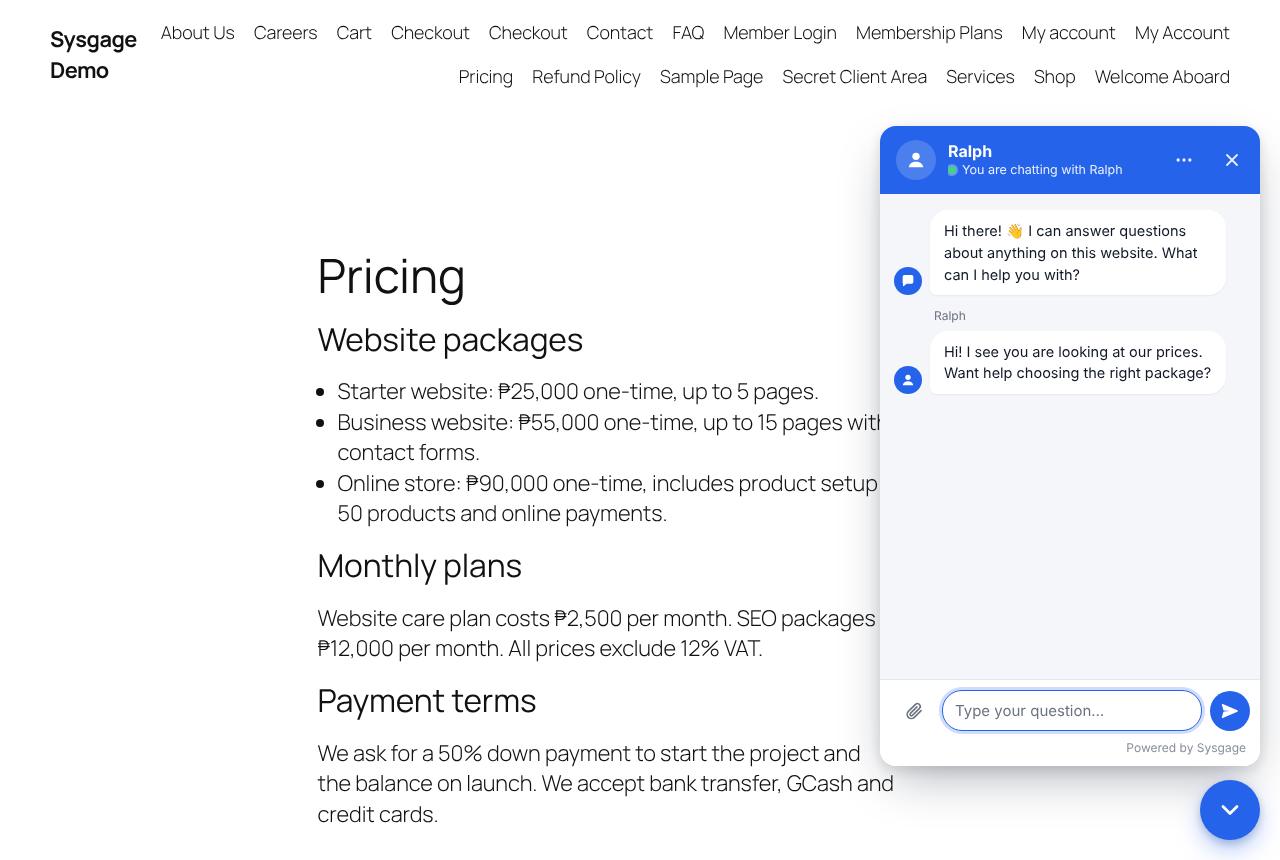
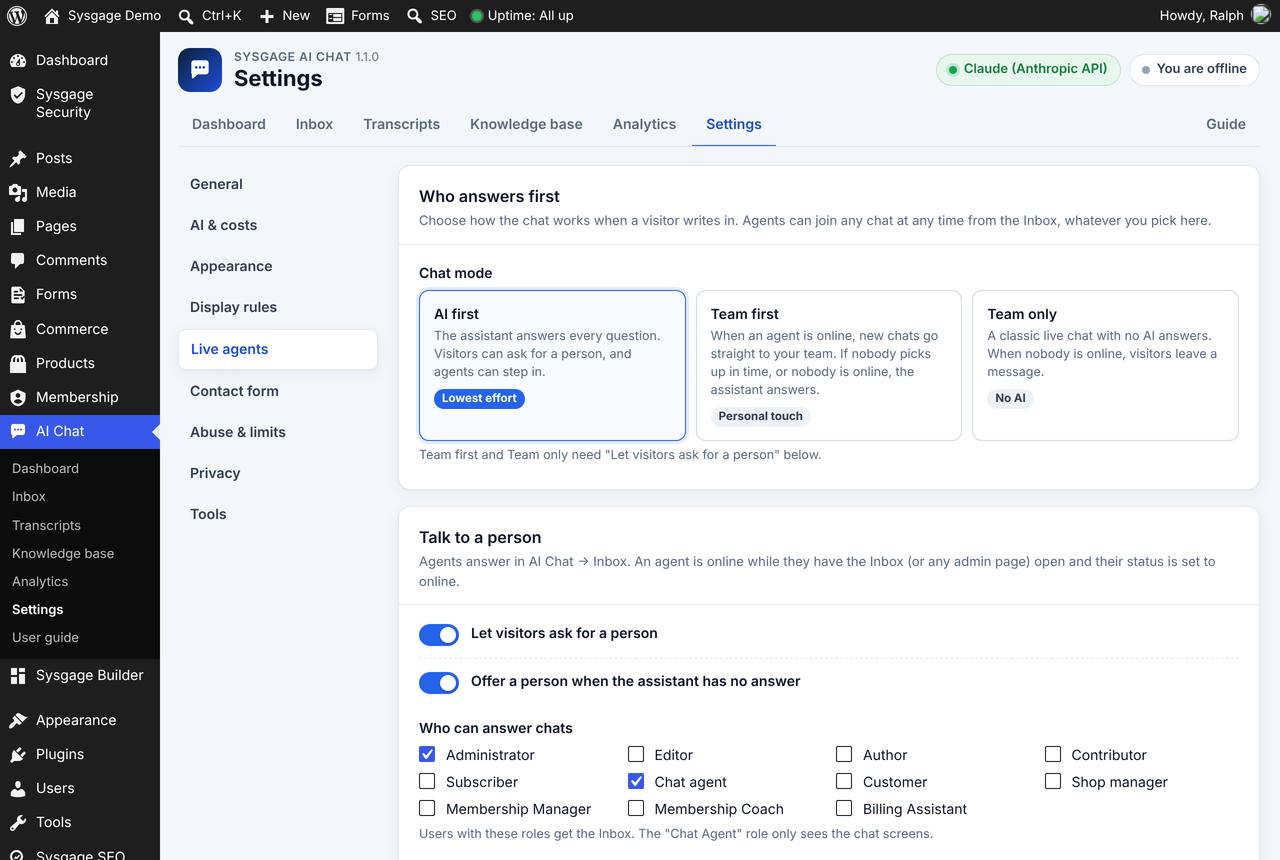
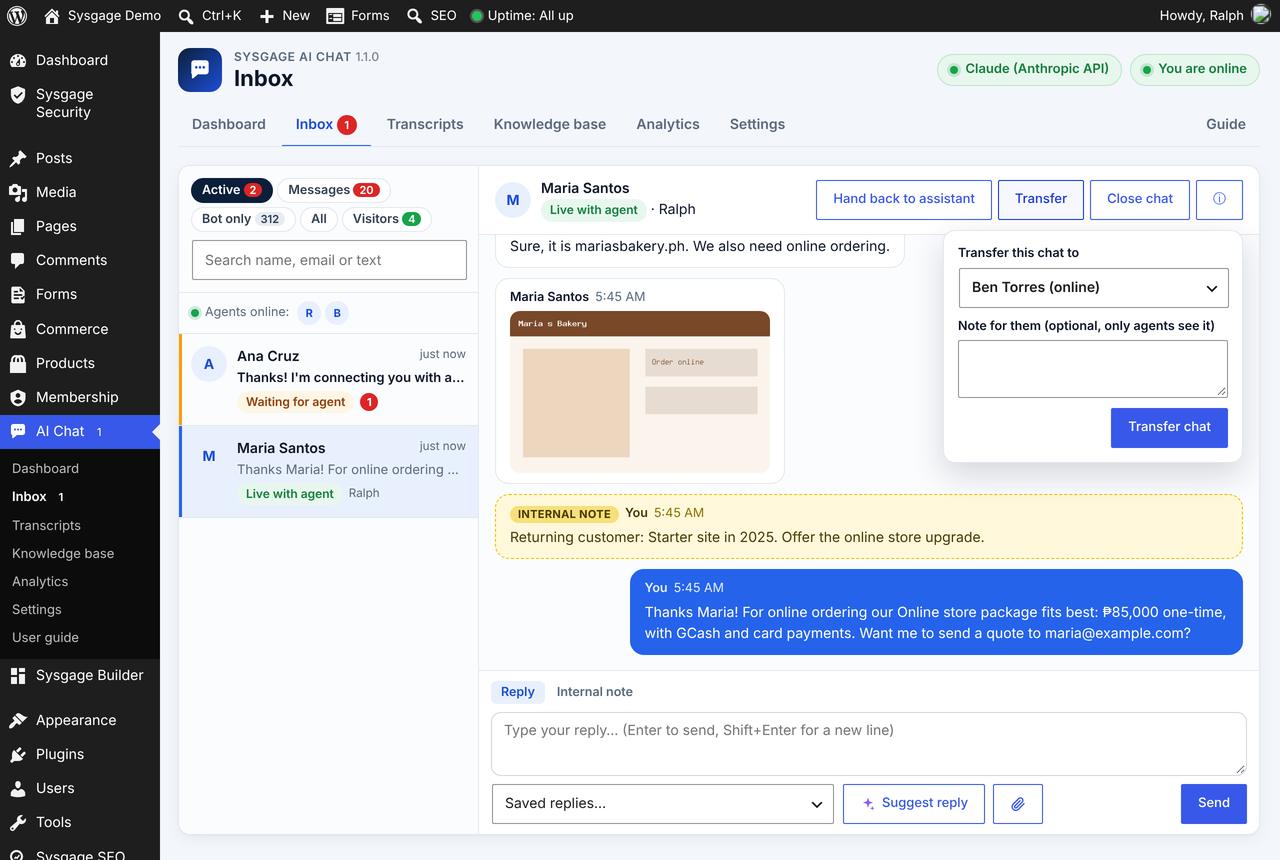
- Live agents: the Inbox Live agents are people on your team who answer chats in real time from AI Chat → Inbox.
- Contact form and messages Settings → Contact form
- Guard rails: abuse, spam and off-topic questions The chat is designed so it cannot be turned into a free AI service or a spam channel.
- Transcripts AI Chat → Transcripts lists every conversation: visitor, first question, status, number of messages, AI cost and start time.
- Analytics AI Chat → Analytics for the last 7, 30 or 90 days. Hover any chart for exact numbers, or click Show as table.
- Privacy Settings → Privacy
- Shortcodes, buttons and JavaScript
- Your own agent (webhook format) With Provider → Your own agent, each question that needs AI is sent to your Webhook URL as a JSON POST:
- Working with other Sysgage plugins
- Tools: export, import and reset Settings → Tools
- WP-CLI commands
- For developers: hooks Filters: sglc_show_widget, sglc_should_index, sglc_index_post_types, sglc_post_sections, sglc_product_facts, sglc_content_is_restricted, sglc_skip_field_pattern, sglc_stopwords, sglc_smalltalk, sglc_wants_human, sglc_pre_answer, sglc_system_prompt, sglc_offtopic_patterns, sglc_abuse_words, sglc_visitor_blocked, sglc_client_ip, sglc_model_prices, sglc_anthropic_request, sglc_openai_request, sglc_agent_payload, sglc_ai_ready, sglc_uses_builder.
- Troubleshooting The chat button does not appear. Check Settings → General → Show the chat on my website and Display rules. Clear your caching plugin and CDN cache. If…
- Uninstalling Deactivating the plugin removes the chat from your site and stops background tasks; nothing is deleted. Deleting the plugin from Plugins removes the tables, settings, files shared in…
- Changelog What changed in each version of Sysgage AI Chat.