Skip to content
  • LocationSan Pedro, Laguna, Philippines
  • Office hoursMon–Fri, 8:00 AM – 5:00 PM PHT (UTC+8)

Sysgage Builder

Drag-and-drop page builder with a visual editor, flex and grid layouts, a theme builder, popups, split tests, funnels and a template library.

Version 1.0.1Updated November 27, 2026

Version 1.0.0

Sysgage Builder is a visual, drag-and-drop website builder for WordPress. It builds landing pages, complete websites, sales funnels and theme parts, and it includes the conversion tools of a funnel builder (popups, forms, countdowns, split tests and funnels) in the same editor.

For step-by-step instructions, see User guide.
Screenshots

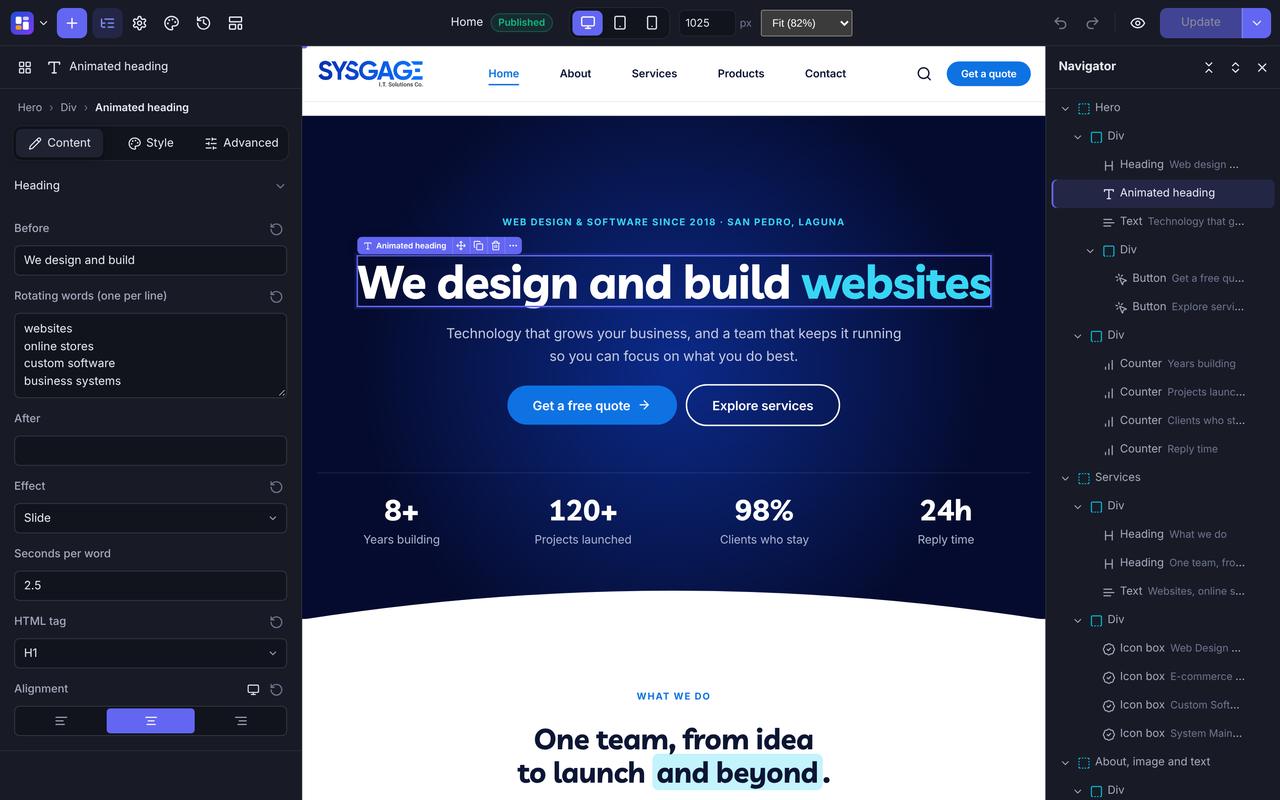
Sysgage Builder: Visual drag-and-drop editor
Visual drag-and-drop editor
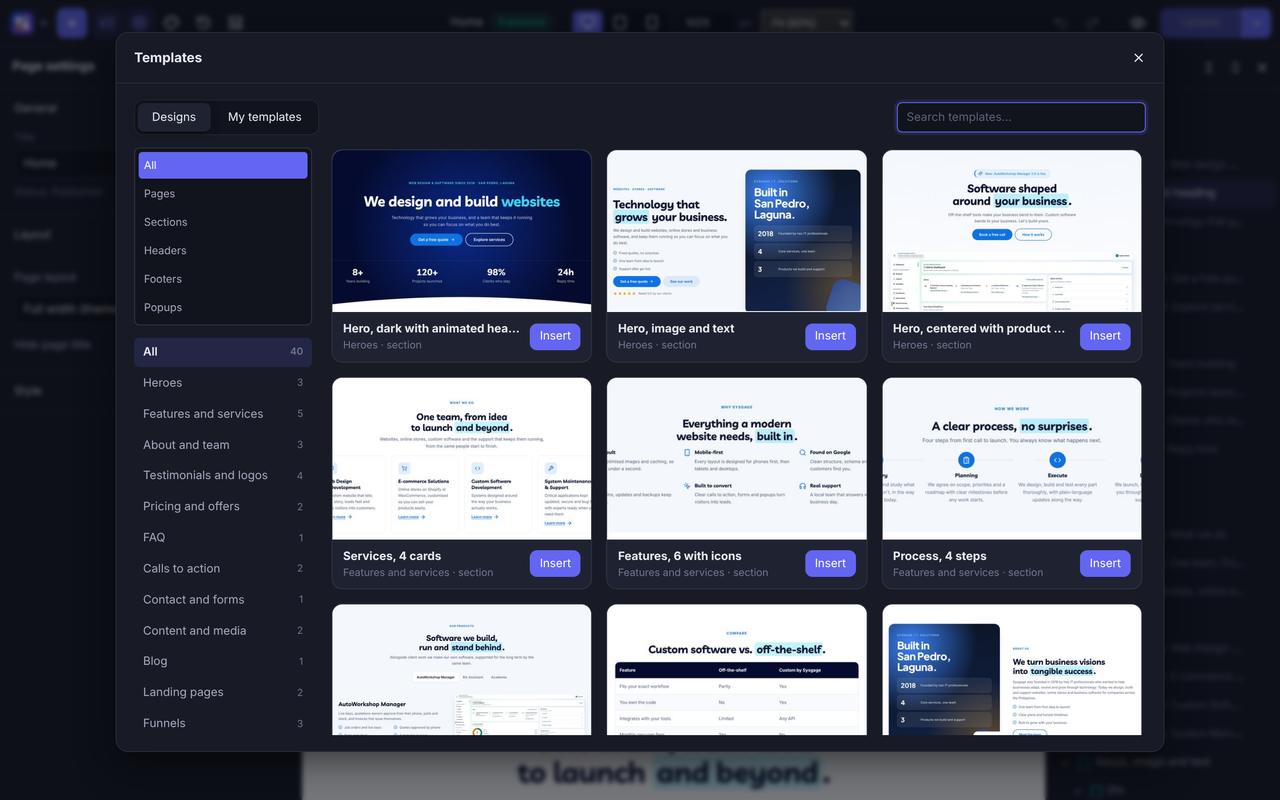
Sysgage Builder: Template library
Template library
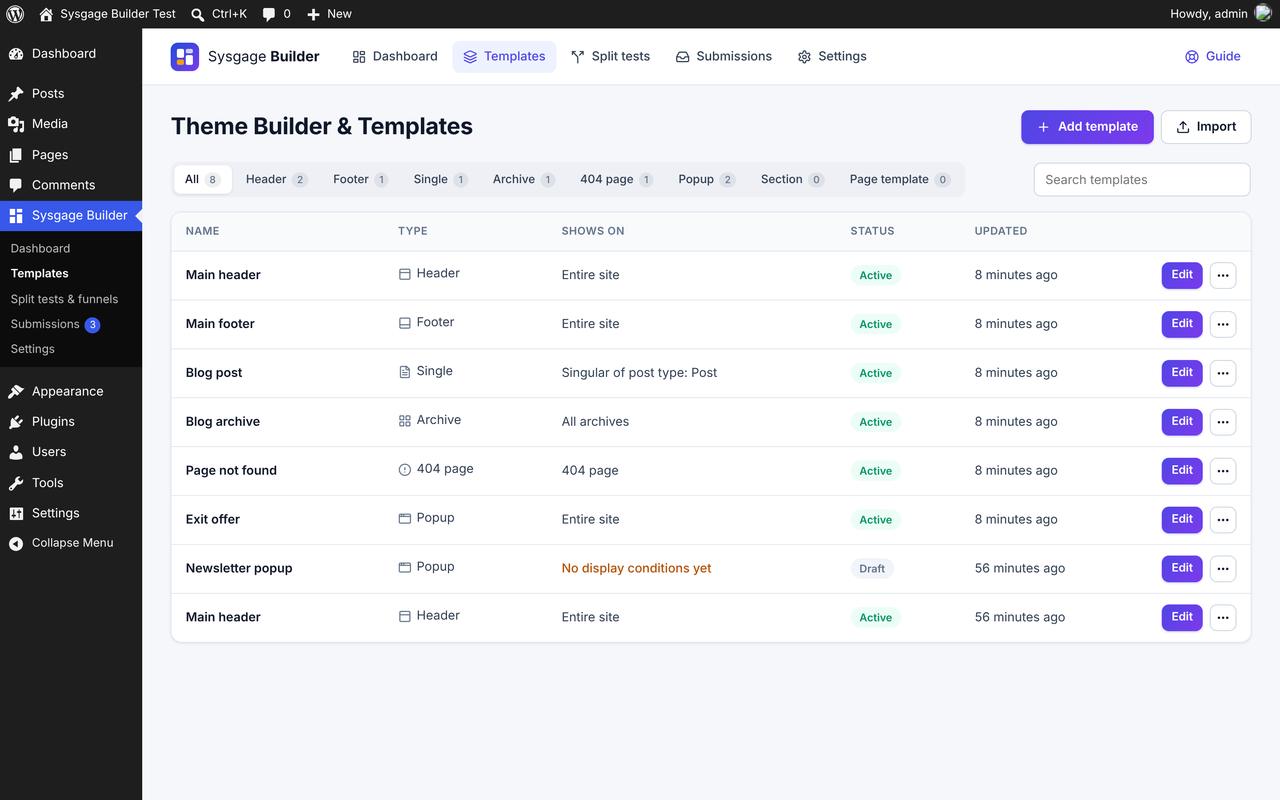
Sysgage Builder: Theme builder: headers, footers, blog and 404
Theme builder: headers, footers, blog and 404
Sysgage Builder: A complete starter site in one click
A complete starter site in one click
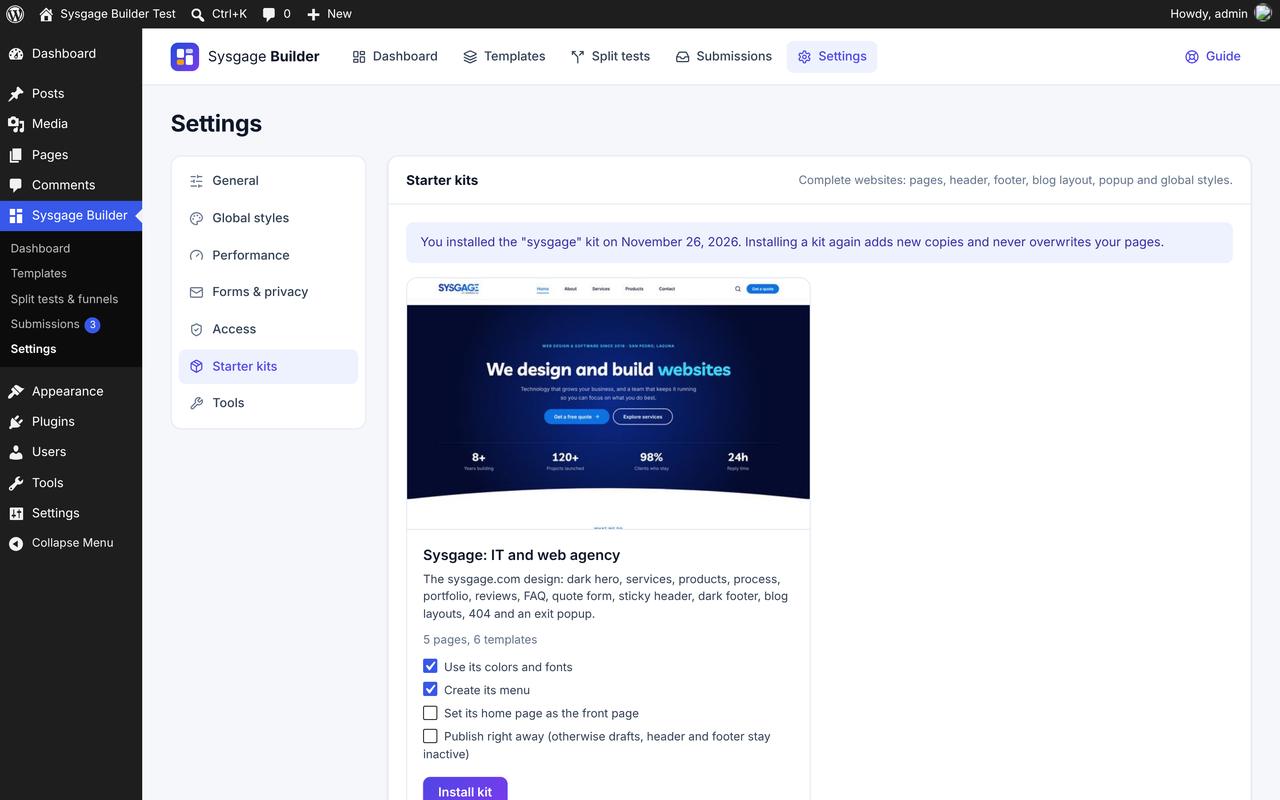
Sysgage Builder: Starter kits
Starter kits
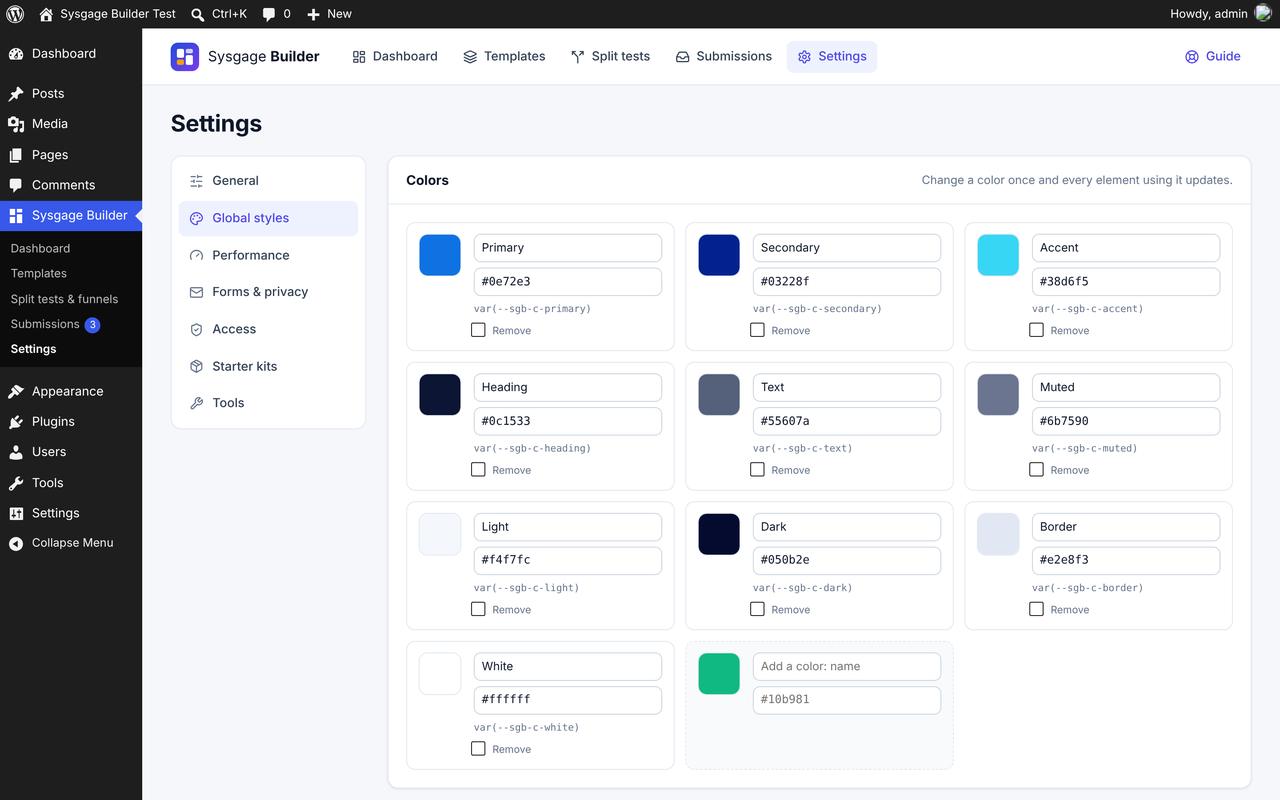
Sysgage Builder: Site styles: colours and fonts
Site styles: colours and fonts
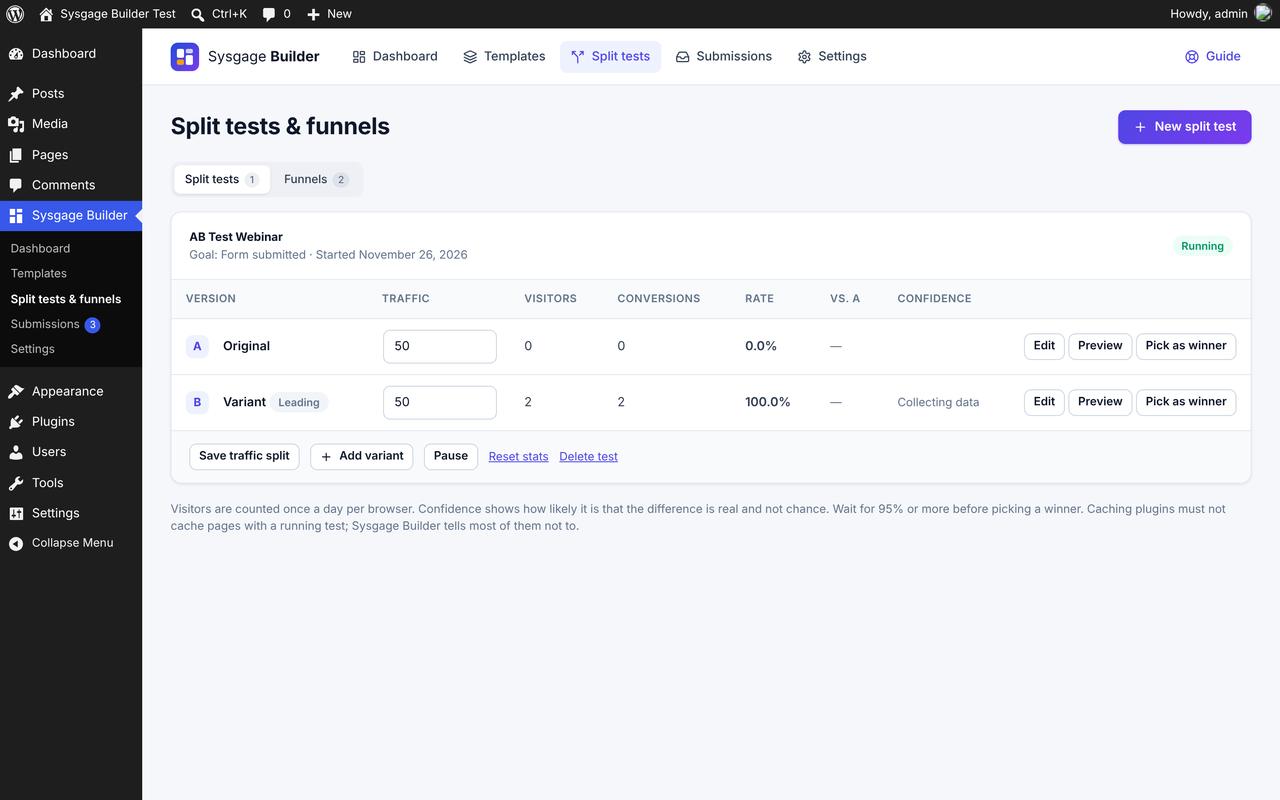
Sysgage Builder: Split tests
Split tests
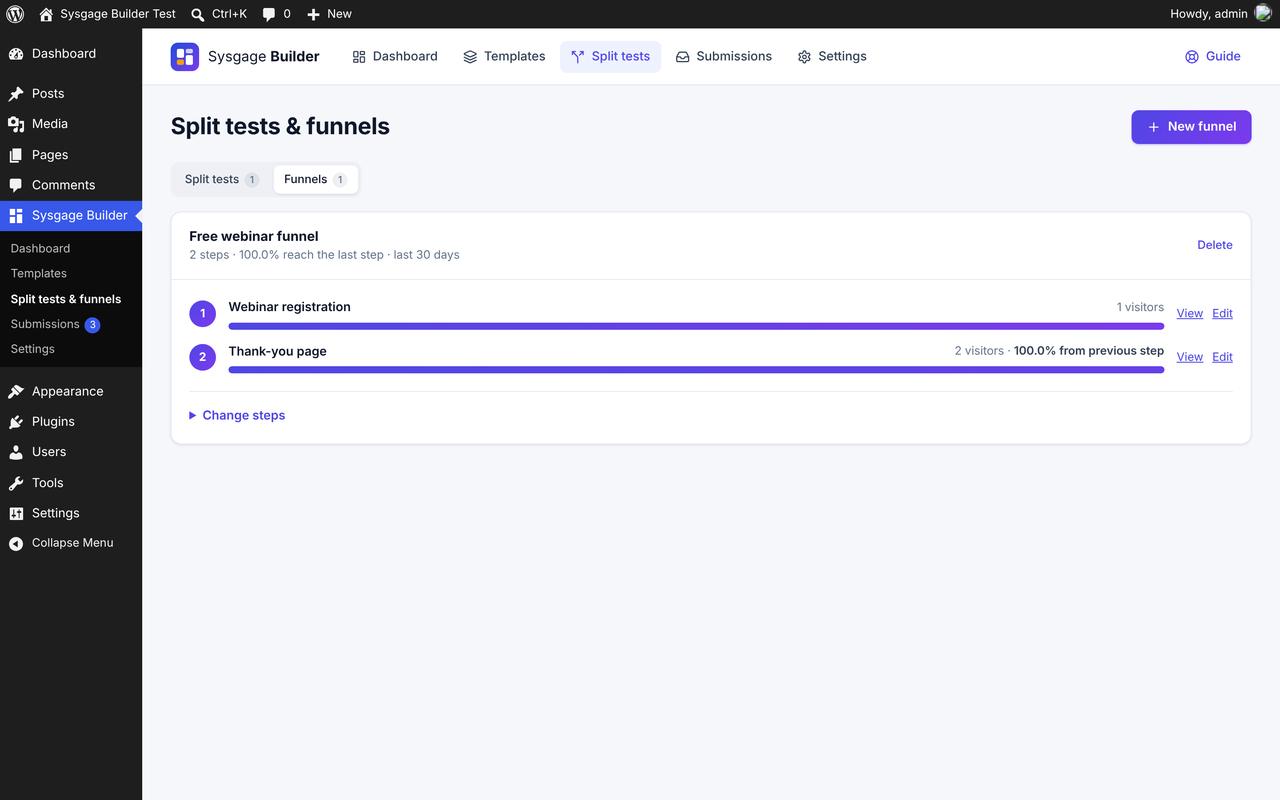
Sysgage Builder: Sales funnels
Sales funnels

User guide

  1. Features Everything Sysgage Builder does, feature by feature.
  2. Install and first steps Version 1.0.0
  3. Install the Sysgage starter site The Sysgage starter kit rebuilds a complete company website in one click: Home, About, Services, Products and Contact pages, a header with a menu, a footer, a blog…
  4. The editor at a glance The editor opens in full screen:
  5. Build a page
  6. Layouts: containers, columns and grids Everything sits inside a Container, which is a full-width band of the page. Inside it:
  7. Style an element Select the element and open Style:
  8. Phones, tablets and laptops Pages are mobile friendly from the start: columns stack on small screens, and text and spacing scale down.
  9. Site styles: colors, fonts and buttons Site styles keep your whole site consistent. Change the primary color once and every button, link and heading that uses it updates on every page.
  10. Templates and the template library The Templates tab in the editor (and Sysgage Builder → Templates) holds:
  11. Theme builder: header, footer, blog and 404 Replace your theme's parts with your own designs. Go to Sysgage Builder → Templates → Add template and choose:
  12. Popups To open a popup from a button, set the button link to Open popup and choose it. To close a popup from inside it, link a button to…
  13. Forms and leads Add a Form element and click its fields to edit them:
  14. Countdowns, pricing and other conversion elements
  15. Split tests A split test (also called an A/B test) shows different versions of a page to different visitors at the same address, and counts which version gets more people…
  16. Funnels A funnel links pages in order, for example an opt-in page, then a thank-you page, then a sales page, and shows how many visitors reach each step.
  17. Dynamic data Most text, link and image settings have a Dynamic data button (the database icon). Insert data that fills in automatically, for example:
  18. Show or hide content with conditions Every element has Advanced → Display conditions: show the element only when the visitor is logged in or out, has a certain role, came from a certain referrer…
  19. Save, publish, history and revisions
  20. Working with the WordPress editor
  21. Other Sysgage plugins Sysgage Builder connects to the other Sysgage plugins automatically when they are active:
  22. Give clients safe access Go to Settings → Access:
  23. Settings Sysgage Builder → Settings has these sections:
  24. Tools: moving a site, export and import In Settings → Tools:
  25. Keyboard shortcuts
  26. Troubleshooting The editor says it cannot load the page preview. Make sure the dashboard and the site use the same address and protocol (both https://). Check Settings → General…
  27. Changelog What changed in each version of Sysgage Builder.