Skip to content
  • LocationSan Pedro, Laguna, Philippines
  • Office hoursMon–Fri, 8:00 AM – 5:00 PM PHT (UTC+8)

Sysgage Forms

Drag-and-drop forms with 36 field types, conditional logic, multi-page forms, calculations, payments, approvals, quizzes and surveys.

Version 1.0.0Updated November 26, 2026

Version 1.0.0. Requires WordPress 6.4+ and PHP 7.4+. Tested with WordPress 7.1.

Sysgage Forms is an enterprise form builder for WordPress. You can use it for:

  • a contact form
  • a multi-page job application with uploads and an e-signature
  • a paid event registration
  • a graded quiz
  • a customer survey with Net Promoter Score
  • a leave request that a manager approves by email

Every form is built in a drag-and-drop builder, so you never need to touch code.

Payments go through PayMongo, Stripe and PayPal:

  • PayMongo takes cards, GCash, Maya, GrabPay, QR Ph, ShopeePay, online banking and BillEase.
  • Stripe and PayPal also handle recurring subscriptions.

Spam is stopped before it reaches your inbox by several layers:

  • an invisible honeypot and a time trap
  • signed form tokens
  • your choice of CAPTCHA: Cloudflare Turnstile, reCAPTCHA v2 or v3, hCaptcha, or a simple math question
  • rate limits and block lists
  • disposable-email blocking
  • Akismet

Sysgage Forms also connects to the other Sysgage plugins:

  • A form can add products to a Sysgage Commerce cart.
  • A form can give a Sysgage Membership level.

This guide is for buyers comparing features and for developers building on the plugin. For the step-by-step "how do I" guide for site owners, see User guide.

Screenshots

Sysgage Forms: Drag-and-drop form builder
Drag-and-drop form builder
Sysgage Forms: Start from a ready-made template
Start from a ready-made template
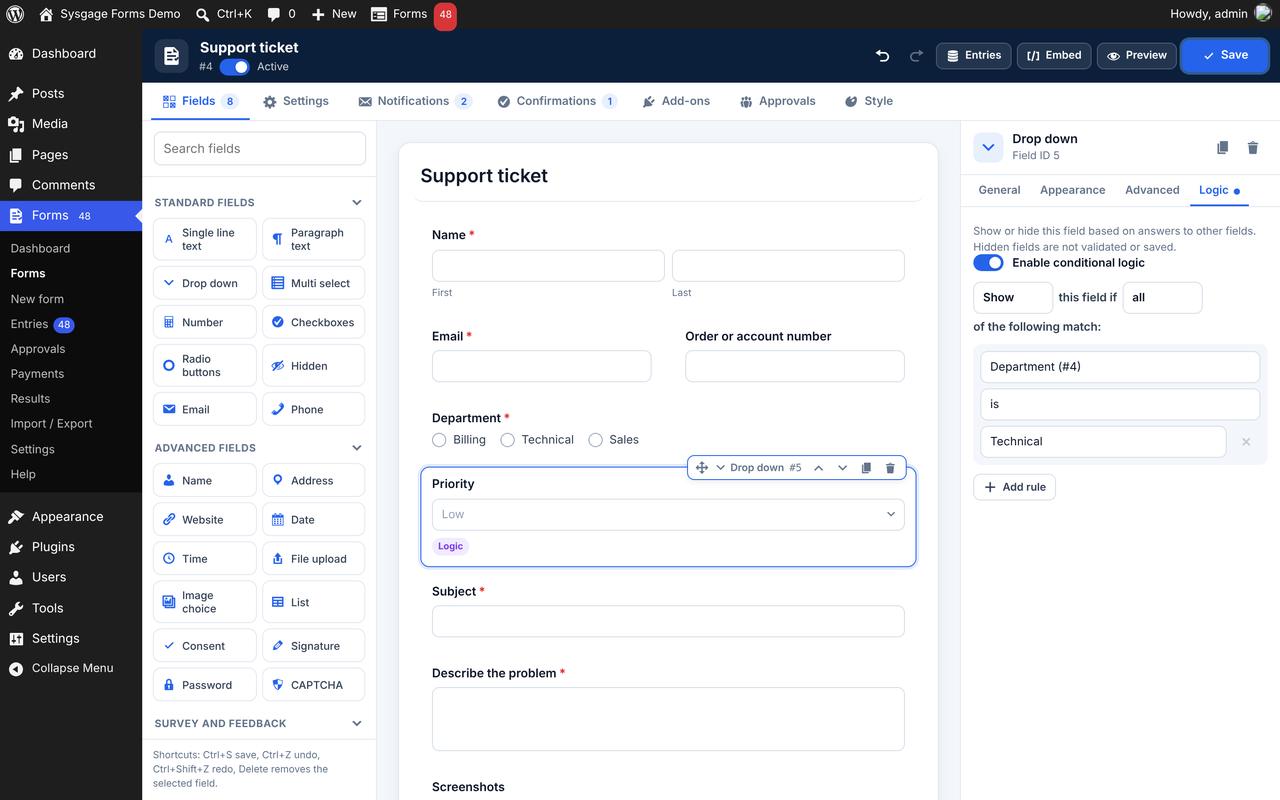
Sysgage Forms: Conditional logic
Conditional logic
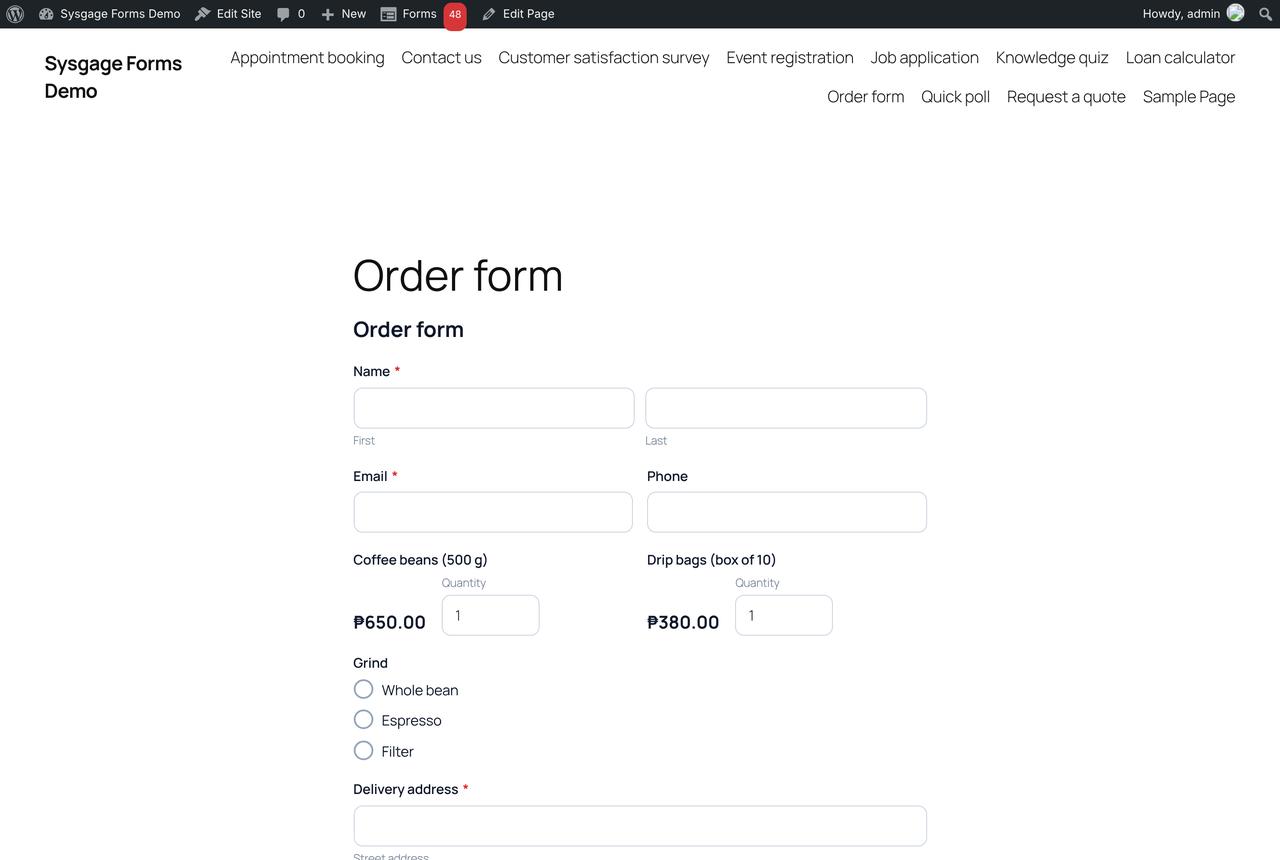
Sysgage Forms: An order form with payment
An order form with payment
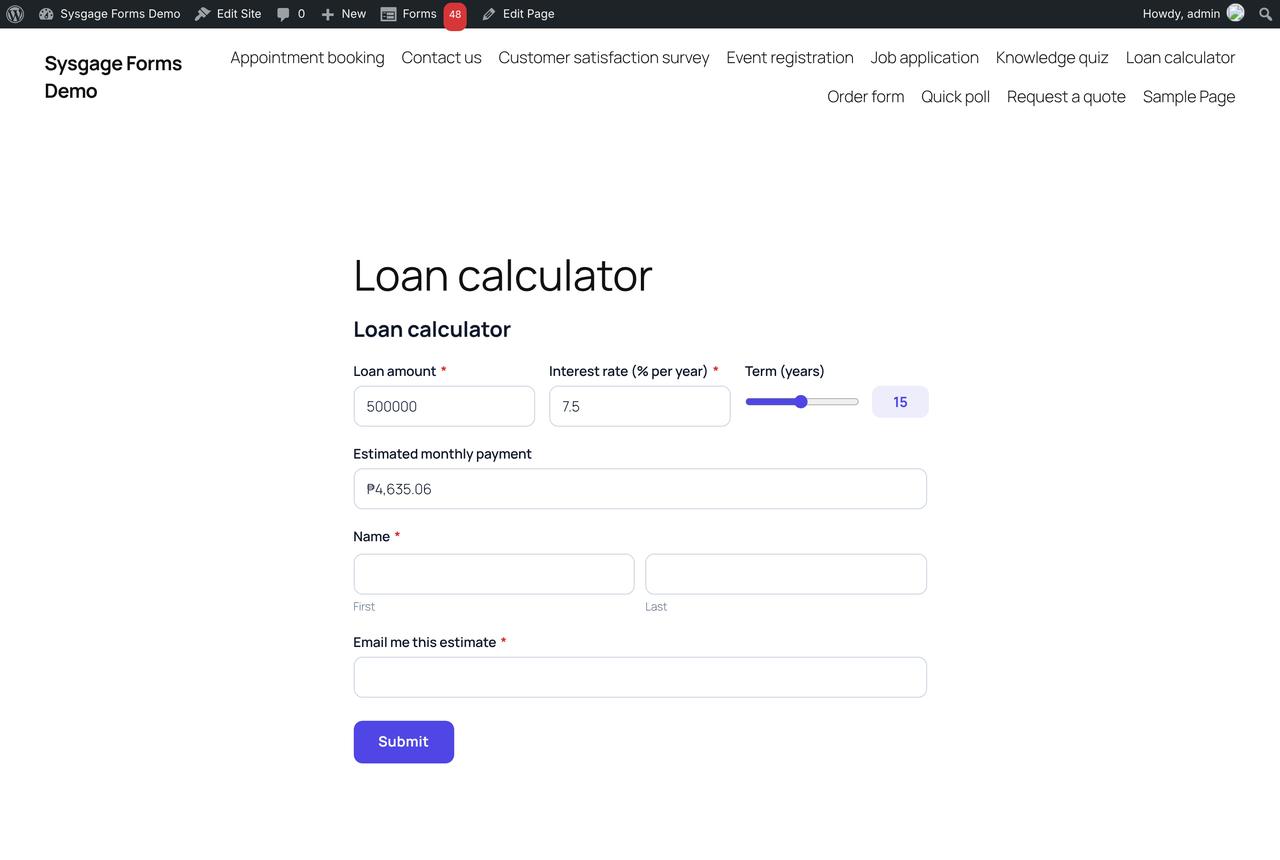
Sysgage Forms: Calculations as visitors type
Calculations as visitors type
Sysgage Forms: Entries
Entries
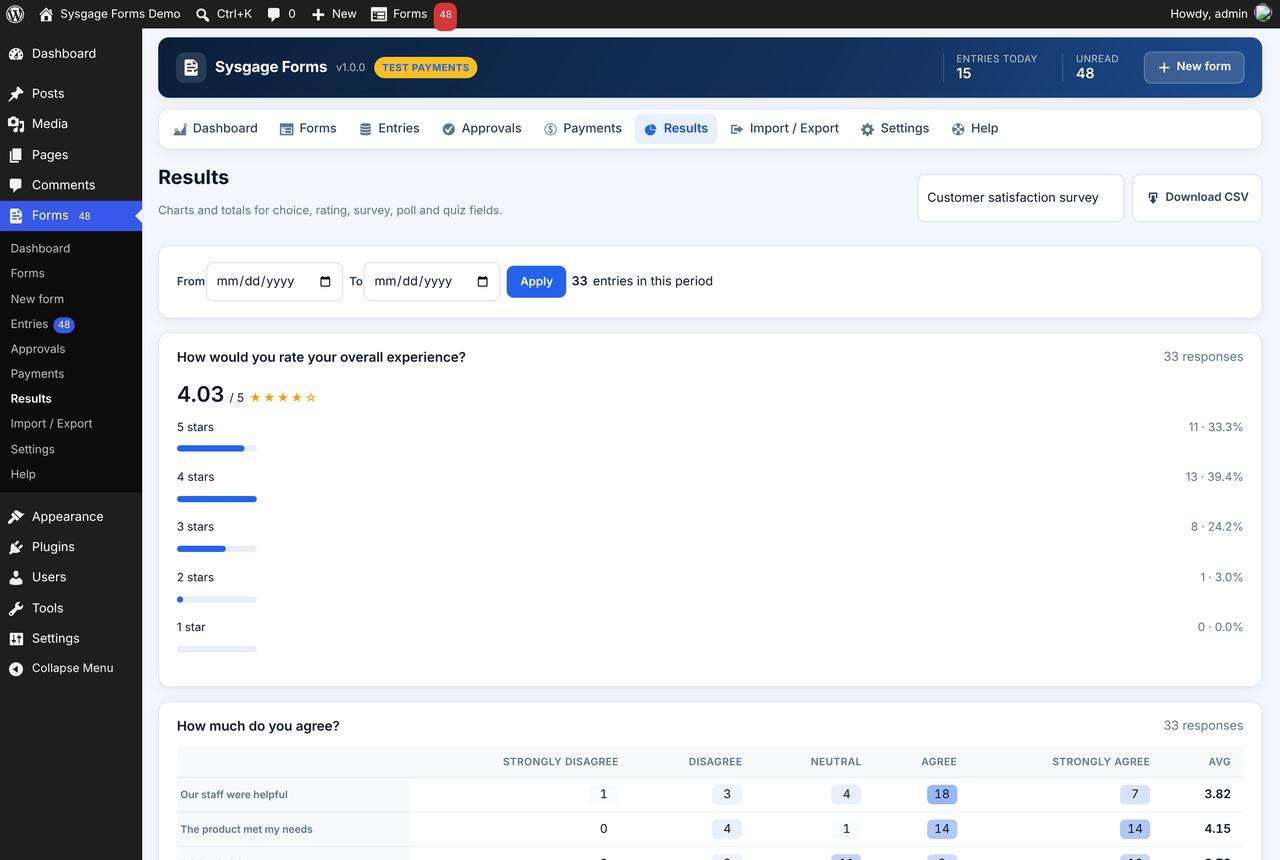
Sysgage Forms: Survey results
Survey results
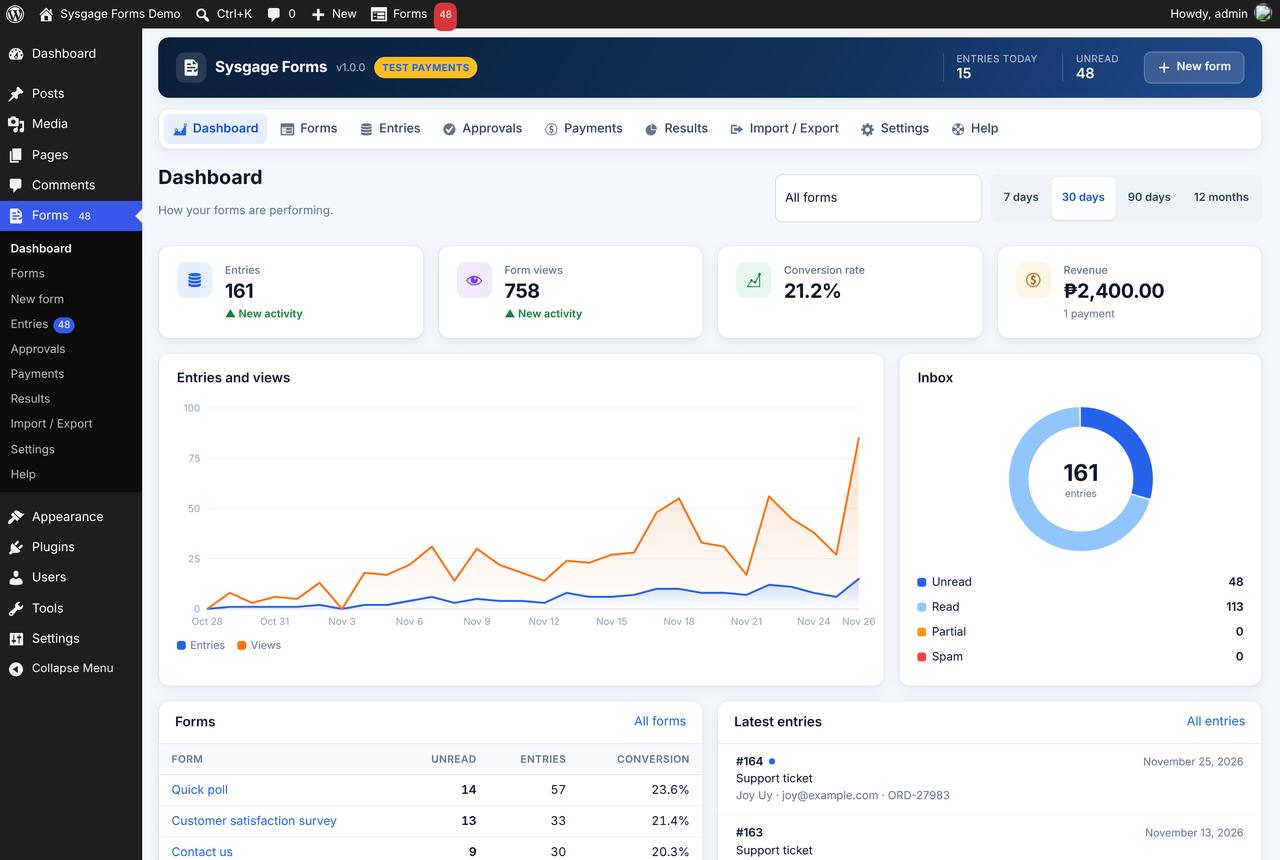
Sysgage Forms: Forms dashboard
Forms dashboard

User guide

  1. Features Everything Sysgage Forms does, feature by feature.
  2. Install and first steps Version 1.0.0
  3. Create your first form The builder has seven tabs along the top:
  4. Work with fields Add a field
  5. Conditional logic You can show a field only when another answer matches. For example, show "Company name" only when "I am buying for" is "A business".
  6. Multi-page forms Each page is checked before the visitor moves on. To let visitors stop and come back later, switch on Save and continue (section 6).
  7. Form settings Open the Settings tab. The sections are listed on the left.
  8. Notifications (emails) Every new form has an Admin notification that sends all the answers to the site admin email. To add more:
  9. Confirmations The Confirmations tab sets what the visitor sees after submitting.
  10. Stop spam Out of the box, every form has an invisible honeypot, a time trap and signed tokens. These stop most bots without bothering real visitors. For forms that still…
  11. Take payments To offer a choice of gateway:
  12. Add-ons Open the Add-ons tab and click Connect an add-on. You can add several of each, and each can have conditional logic.
  13. Approvals Use approvals for leave requests, purchase requests, content submissions and anything else that needs a yes or no.
  14. Quizzes, polls and surveys Quiz
  15. Style your form Open the Style tab. The preview on the right updates as you change settings. Use the desktop and phone buttons to check both sizes.
  16. Put a form on your site Block editor
  17. Manage entries Go to Forms → Entries and pick a form.
  18. Results and payments Forms → Results
  19. Import and export Go to Forms → Import / Export.
  20. Plugin settings Forms → Settings has these tabs:
  21. Staff accounts Go to Forms → Settings → Permissions and tick capabilities for each role.
  22. Troubleshooting
  23. Changelog What changed in each version of Sysgage Forms.