Skip to content
  • LocationSan Pedro, Laguna, Philippines
  • Office hoursMon–Fri, 8:00 AM – 5:00 PM PHT (UTC+8)

Sysgage Membership

Memberships and courses with recurring billing through PayMongo, Stripe or PayPal.

Version 1.3.1Updated November 26, 2026

Version 1.3.1. Requires WordPress 6.4+ and PHP 7.4+.

Sysgage Membership turns a WordPress site into a paid membership site for the Philippine market. It covers:

  • membership plans (free, one-time and recurring)
  • recurring billing
  • free and paid trials
  • coupons
  • content locking
  • a member account area
  • branded emails
  • reports

Payments go through PayMongo, natively, with Stripe and PayPal as optional extra gateways. Members can pay by card, GCash, Maya, GrabPay, QR Ph, ShopeePay, online banking, BillEase, Apple Pay or Google Pay (Stripe) or PayPal. Recurring charges are automatic for cards and Maya (PayMongo Subscriptions), Stripe and PayPal. For the other methods, the plugin emails a secure pay link before each renewal.

It also suits online courses and coaching businesses: content can be given to specific people with start and end dates, opened on a launch date or only for the first days after joining, workbooks and videos are protected files, members upload proof of their bank transfer, courses get lesson progress, "Mark complete" and lessons that open in order, and staff (managers, coaches, billing assistants) work with exactly the permissions you give them. See Courses, coaching and private content, Course tools, Bank transfer proof and Staff permissions.

When a renewal fails, members get a grace period, then their membership goes on hold (delinquent): they can still log in, and are greeted by an update-payment screen that restores access in one step. See Failed payments and delinquency.

This guide is for buyers comparing features and for developers building with the plugin.
Screenshots

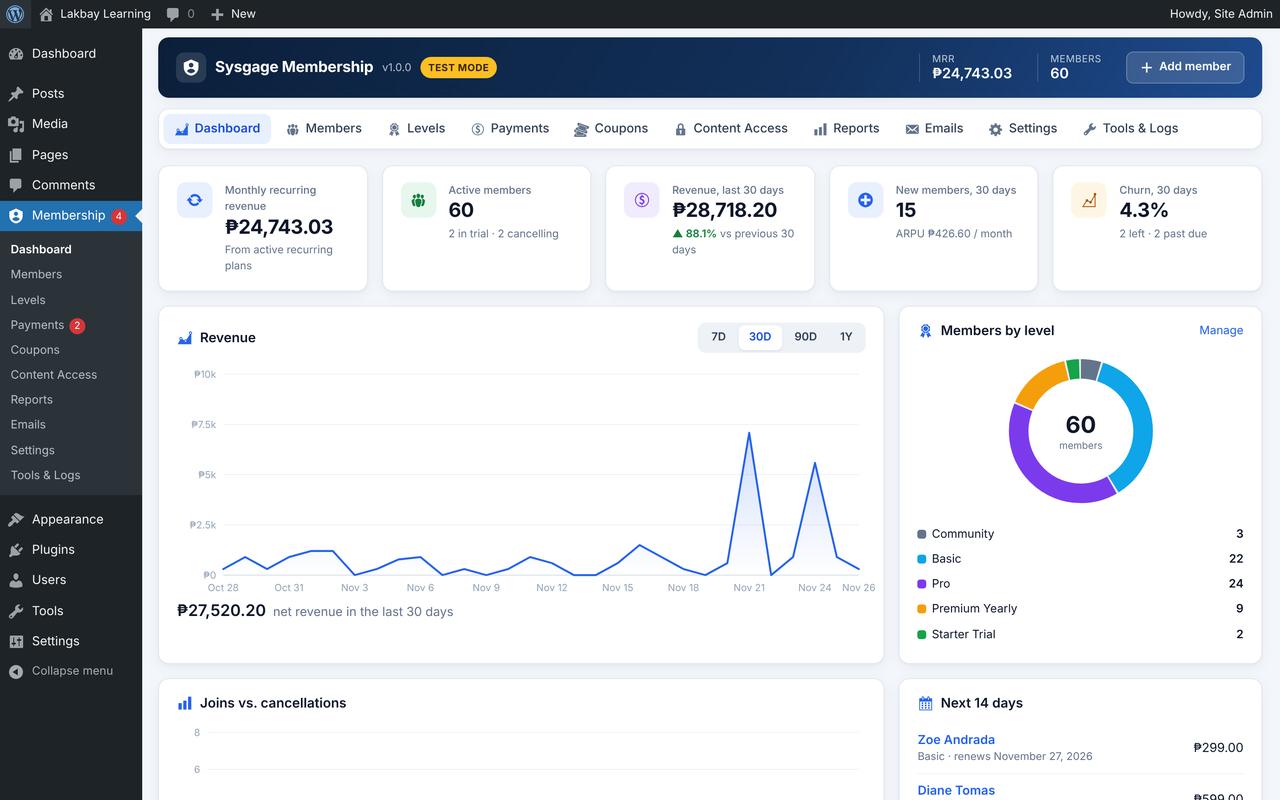
Sysgage Membership: Membership dashboard
Membership dashboard
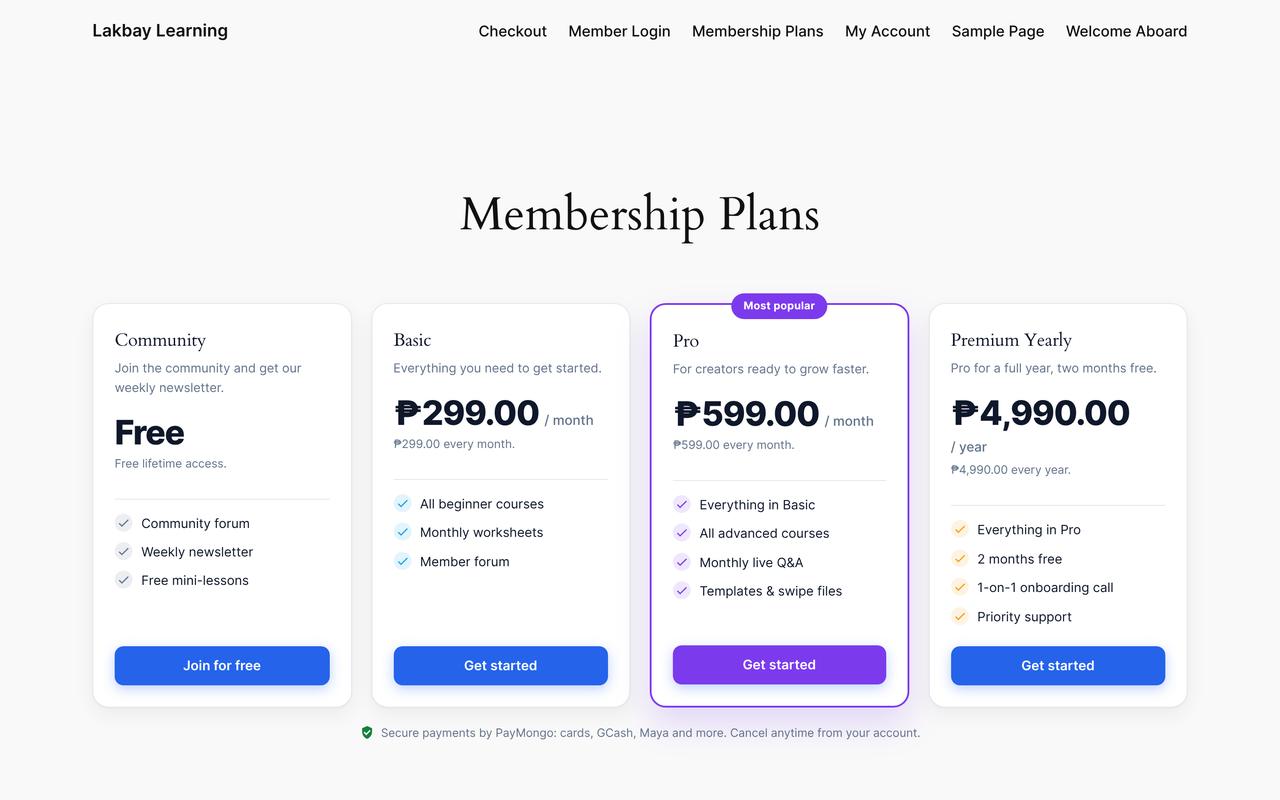
Sysgage Membership: Pricing table for your plans
Pricing table for your plans
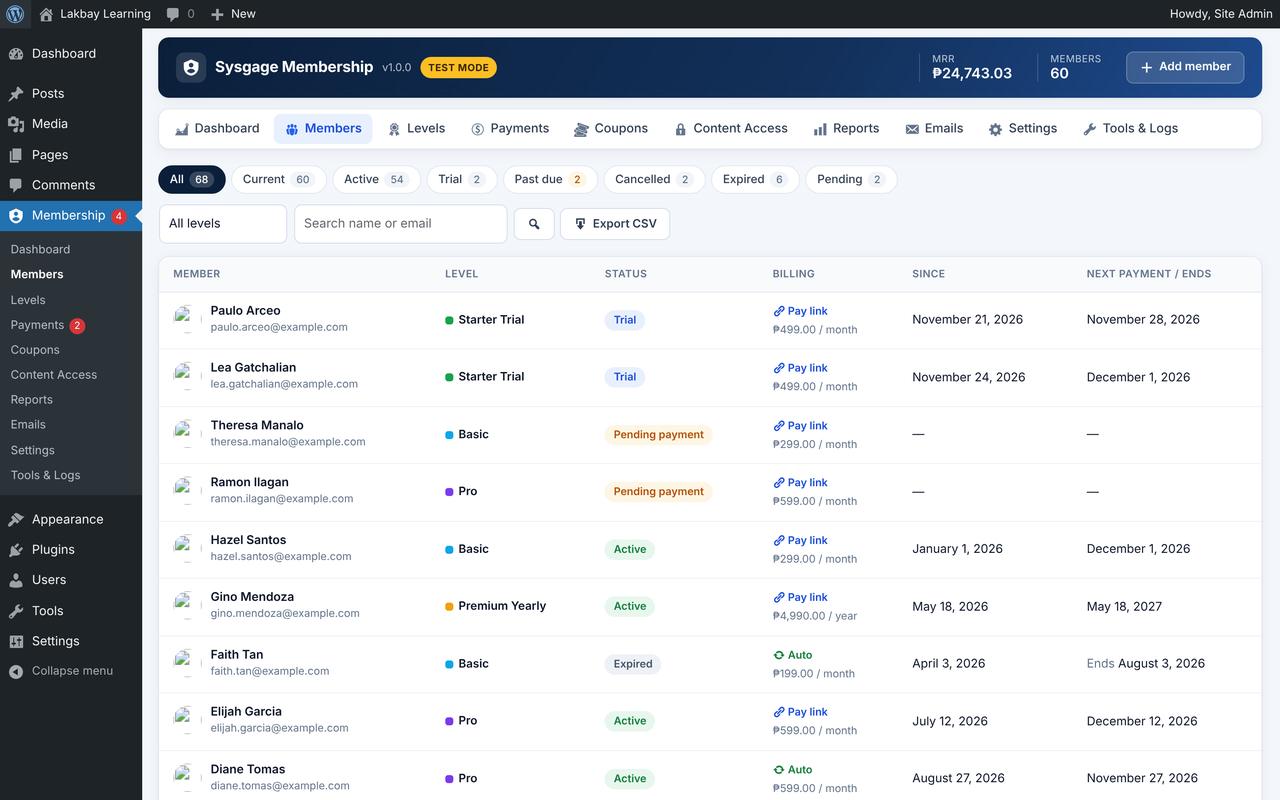
Sysgage Membership: Members
Members
Sysgage Membership: Plan billing settings
Plan billing settings
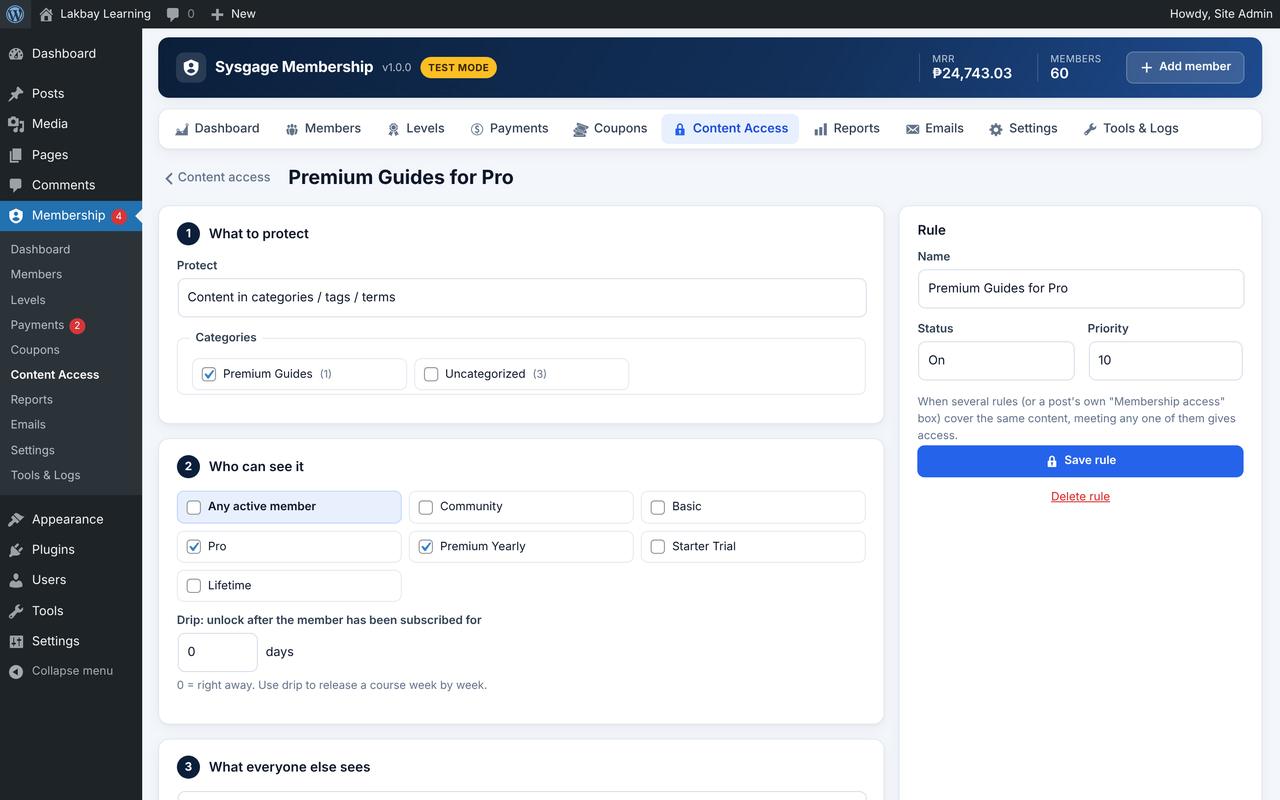
Sysgage Membership: Content access rules
Content access rules
Sysgage Membership: A course with lessons and progress
A course with lessons and progress
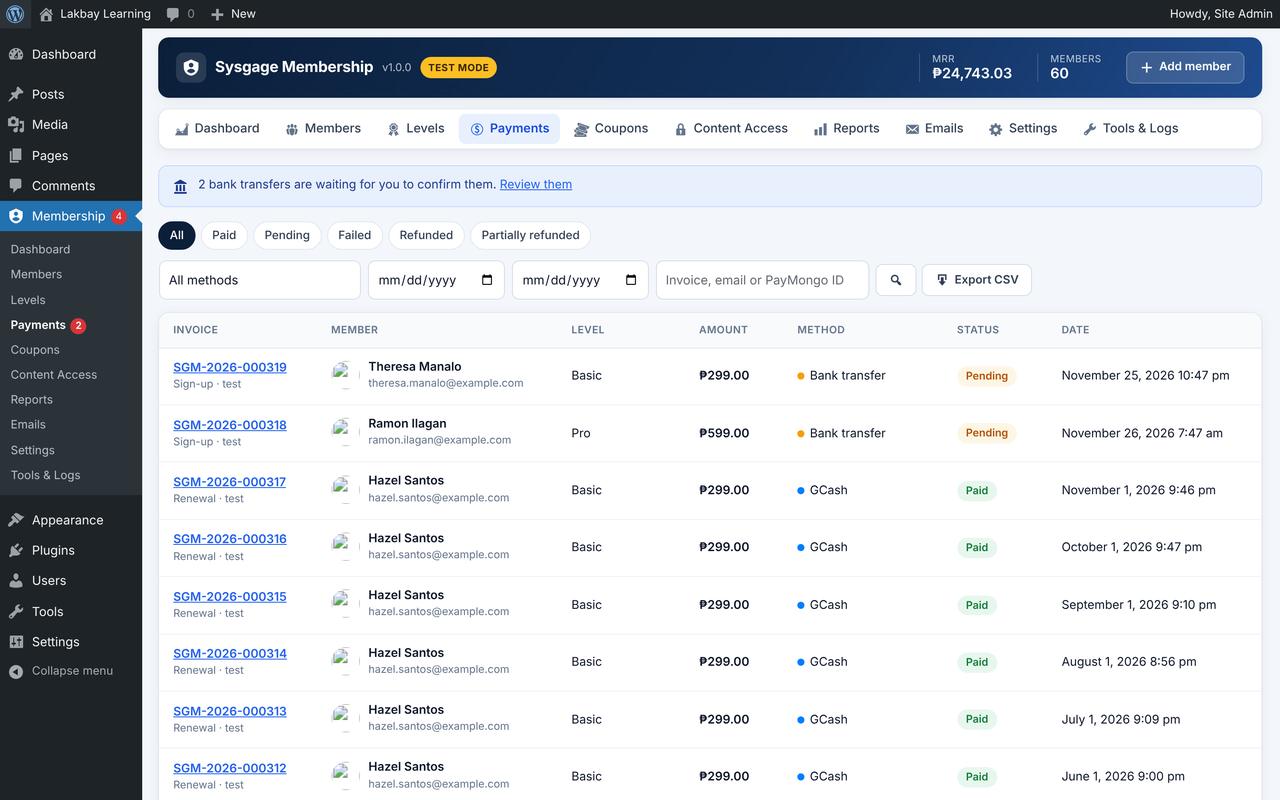
Sysgage Membership: Payments
Payments
Sysgage Membership: Reports
Reports

User guide

  1. Features Everything Sysgage Membership does, feature by feature.
  2. Before you start Version 1.3.1 · For site owners setting up and running a membership site
  3. Install and activate To check or change which pages are used, go to Membership → Settings → Pages.
  4. Connect payments All gateways are set up in Membership → Settings → Payments. At the top you see each gateway's status and one Test / Live switch that applies to…
  5. Create your membership plans Go to Membership → Levels → Add level. The editor has four tabs.
  6. Lock your content You can lock content in three ways: one post at a time, many items at once with an access rule, or for named people with personal access. Every…
  7. Set your billing rules Go to Membership → Settings → Billing rules.
  8. Make a test purchase Keep the mode on Test. Then:
  9. Go live
  10. Managing members Membership → Members lists every membership. Use the status chips (Current, Active, Trial, Past due, Delinquent, Cancelled, Expired, Pending), the level filter and search. Export CSV downloads the…
  11. Payments, refunds and invoices Membership → Payments lists every invoice: paid, pending, failed, refunded. Click one to see the amount, method, gateway fee, gateway IDs and a link to the payment in…
  12. Renewals: how members are billed Each member renews in one of two ways. You can see which on their profile.
  13. Failed payments and delinquent members When a renewal is declined or not paid, Sysgage Membership gives the member time to fix it, then pauses access without deleting anything.
  14. Coupons, trials and plan changes Coupons that apply to several payments are billed by pay link, so each invoice gets the right discount.
  15. Emails Go to Membership → Emails. Each email can be turned on or off, and its subject and body edited.
  16. Reports Membership → Reports shows MRR (monthly recurring revenue), active members, churn, ARPU, revenue split into new and renewals, joins versus cancellations, revenue by level and payment-method mix. Choose…
  17. What your members see All member pages work on phones and with block and classic themes. To restyle them, copy a file from the plugin's templates folder into yourtheme/sysgage-membership/ and edit the…
  18. Shortcodes and blocks In the block editor, use the Membership Plans and Members Only blocks.
  19. Troubleshooting A payment went through but the member is still pending. Open the payment and click Check with …. Then check Tools & Logs → Webhooks for failed or…
  20. Your team: staff permissions Give your team their own logins without making them administrators.
  21. Recipes: courses, coaching and private content An online course with weekly lessons. Create the course page and put each lesson under it as a child page. On the course page, tick the course level…
  22. Courses: lessons, progress and exams Courses are ordinary WordPress pages. The course is a page, and its child pages are the lessons. You keep using the editor you know; the plugin adds progress,…
  23. Changelog What changed in each version of Sysgage Membership.