Skip to content
  • LocationSan Pedro, Laguna, Philippines
  • Office hoursMon–Fri, 8:00 AM – 5:00 PM PHT (UTC+8)

Sysgage SMTP

Send every WordPress email through your own mail service, with 18 mailers, a backup connection, email log, tracking, alerts and a deliverability check.

Version 1.1.1Updated November 27, 2026

Version 1.1.1

Sysgage SMTP sends every email your WordPress site sends through your own mail service, so order emails, invoices, password resets and form notifications reach the inbox. It is built to be the one mail path for the whole site.

Screenshots

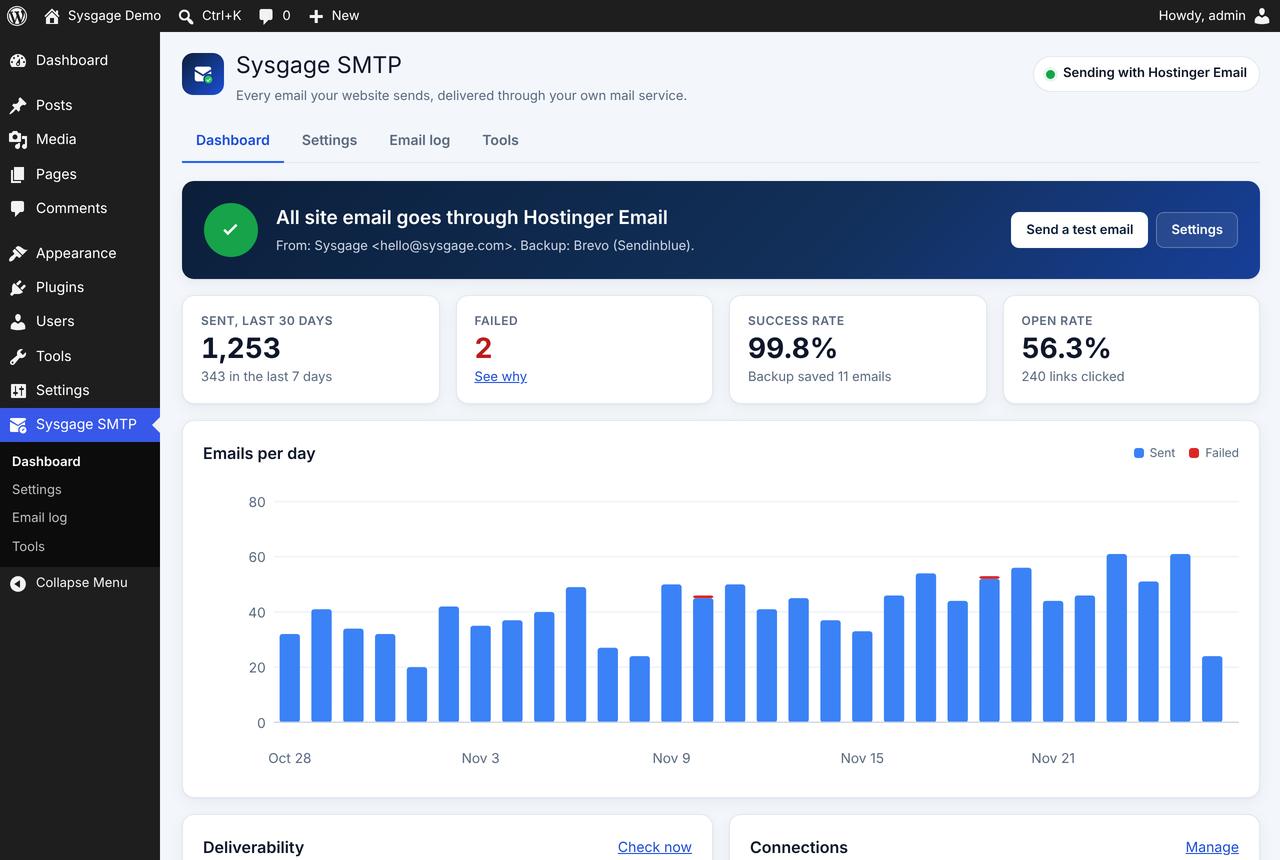
Sysgage SMTP: Dashboard: every email at a glance, with sent, failed, open rate and a 30-day chart
Dashboard: every email at a glance, with sent, failed, open rate and a 30-day chart
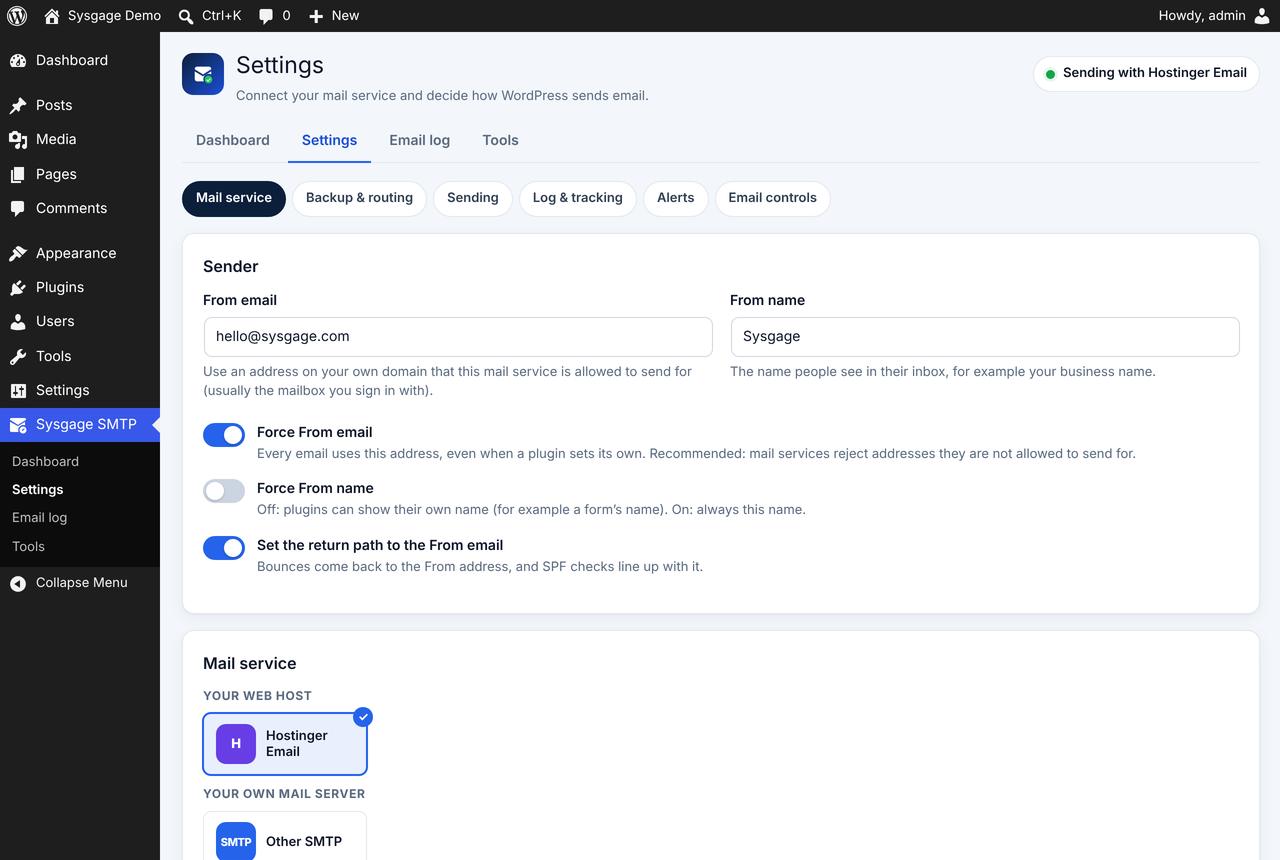
Sysgage SMTP: Connect your own SMTP server or one of 17 mail services, Gmail and Microsoft 365 sign-in included
Connect your own SMTP server or one of 17 mail services, Gmail and Microsoft 365 sign-in included
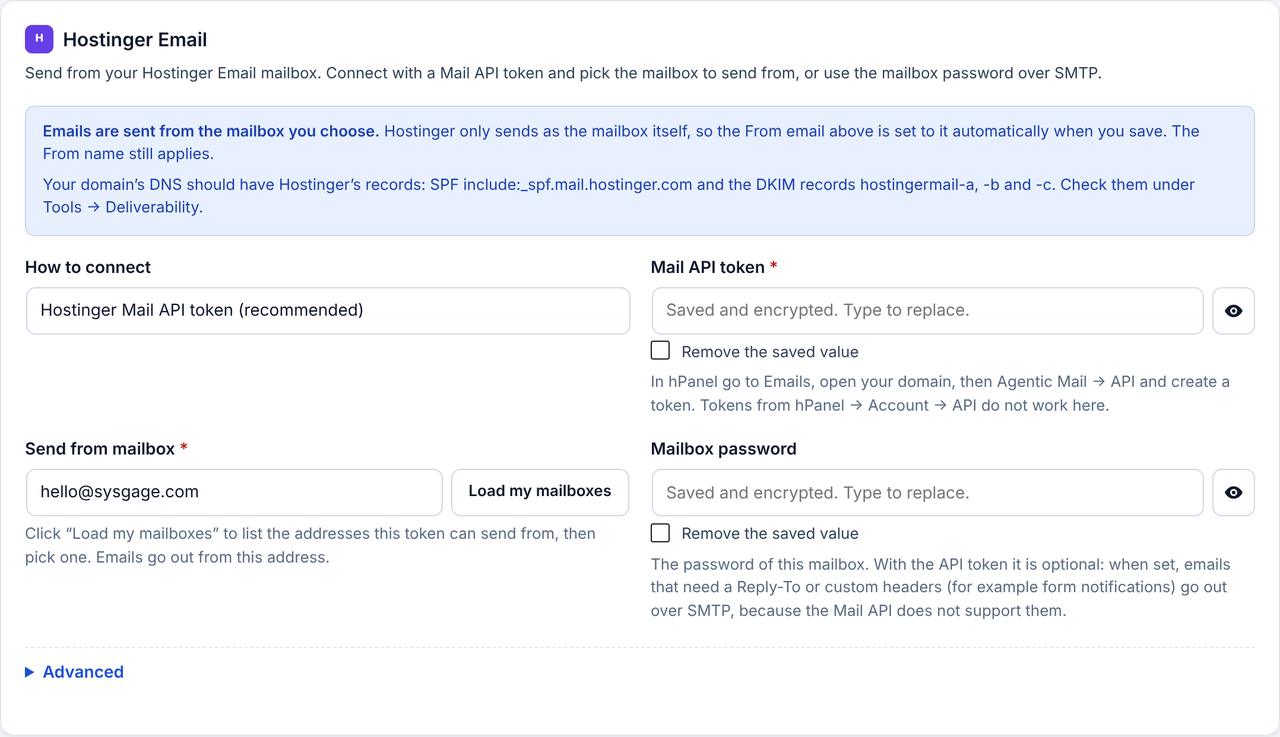
Sysgage SMTP: Hostinger Email: paste your Mail API token and pick the mailbox to send from
Hostinger Email: paste your Mail API token and pick the mailbox to send from
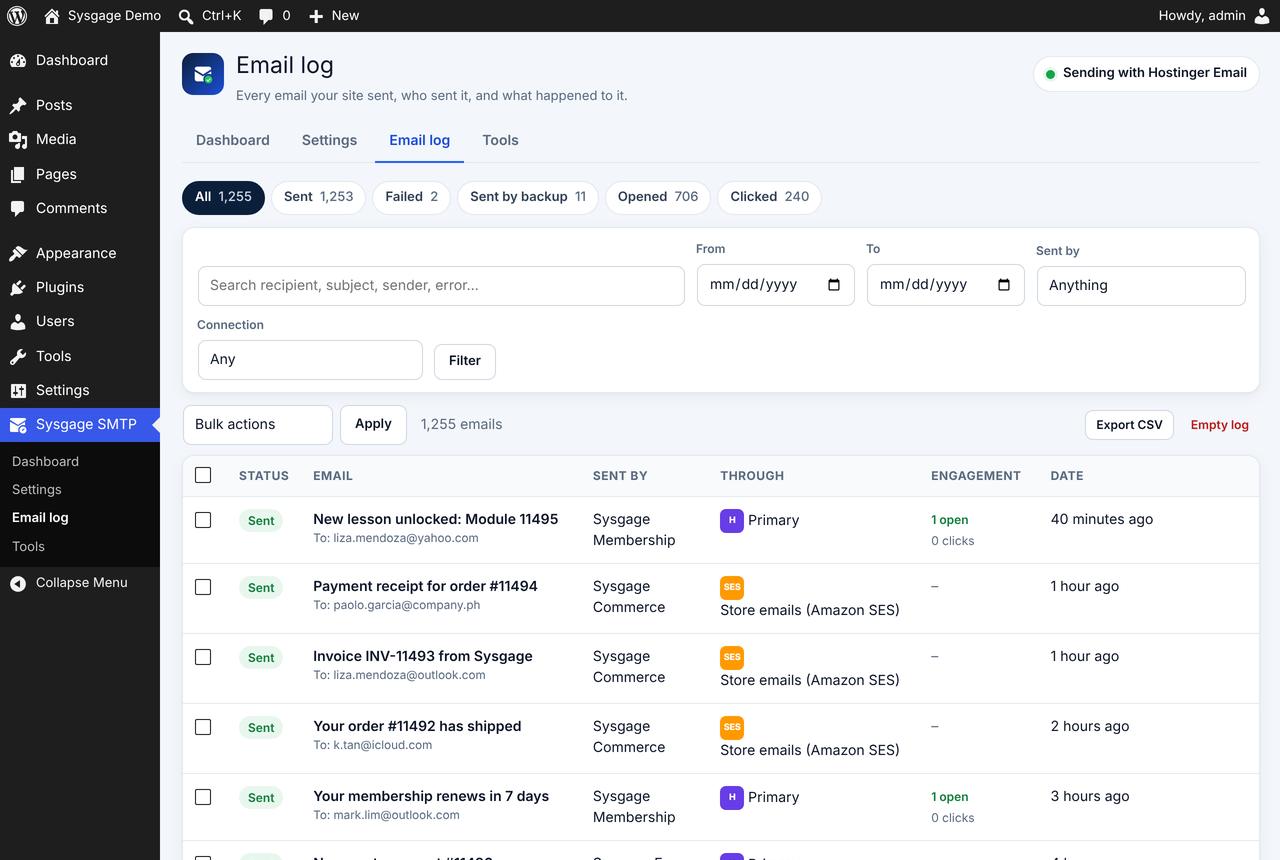
Sysgage SMTP: Email log: see every email the site sent, which plugin sent it, and whether it was opened
Email log: see every email the site sent, which plugin sent it, and whether it was opened
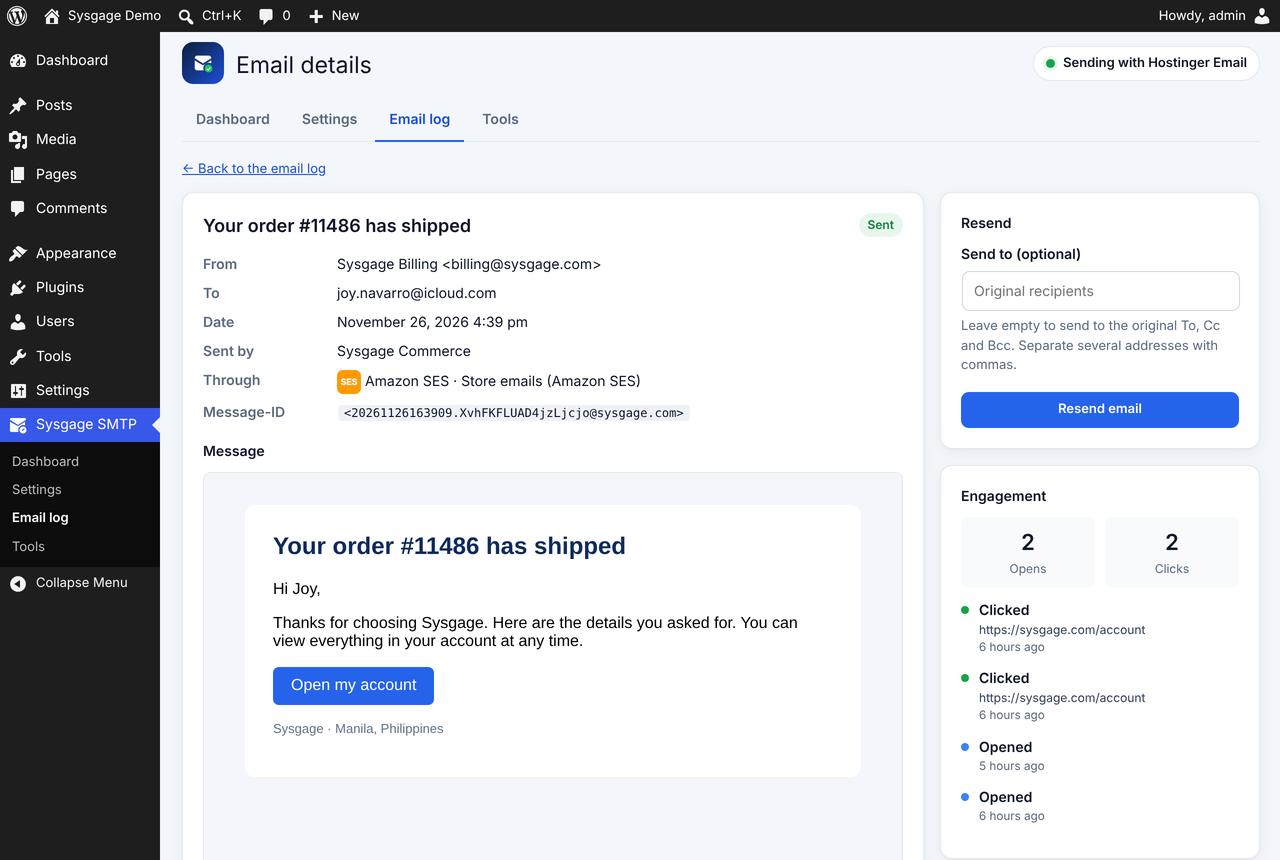
Sysgage SMTP: Email details with a safe preview, open and click timeline, and one-click resend
Email details with a safe preview, open and click timeline, and one-click resend
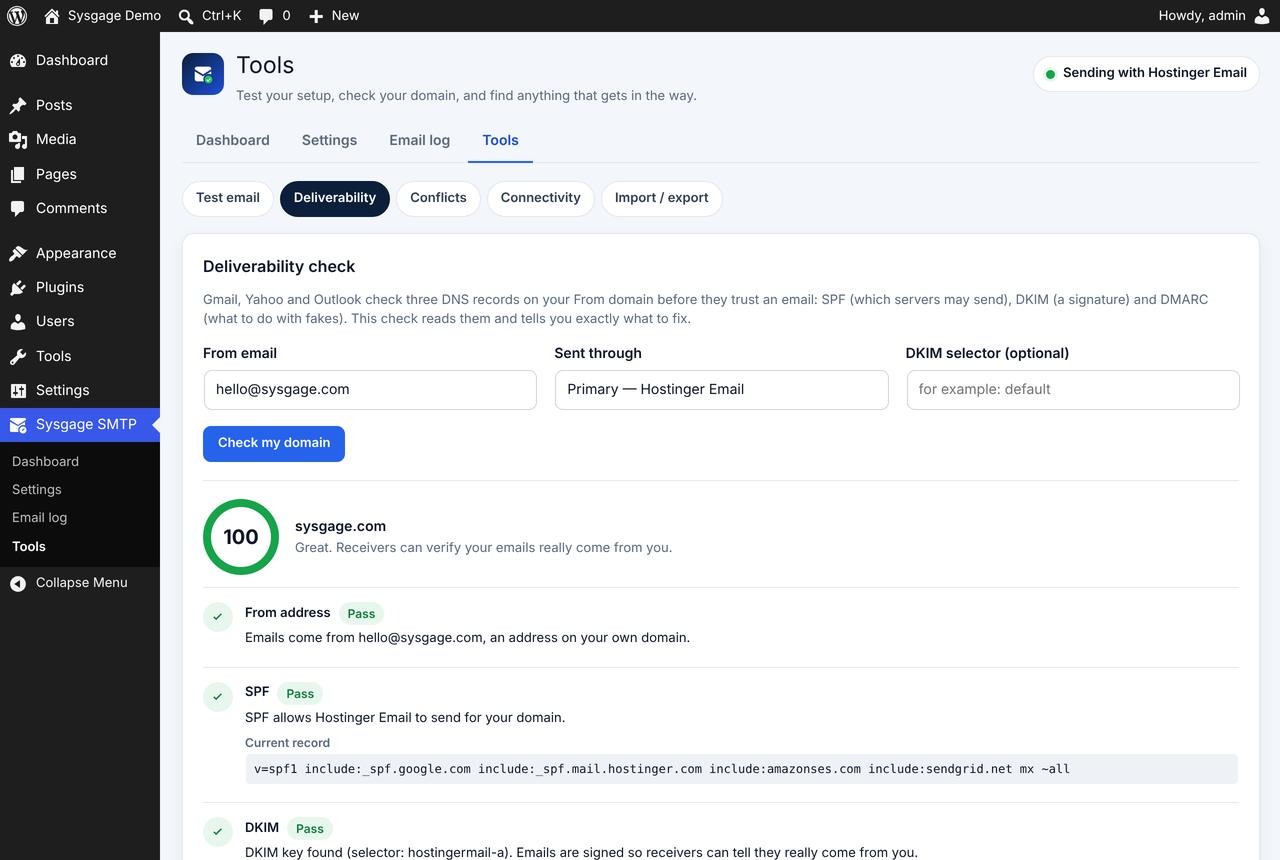
Sysgage SMTP: Deliverability check scores SPF, DKIM, DMARC and MX and gives the exact record to fix
Deliverability check scores SPF, DKIM, DMARC and MX and gives the exact record to fix
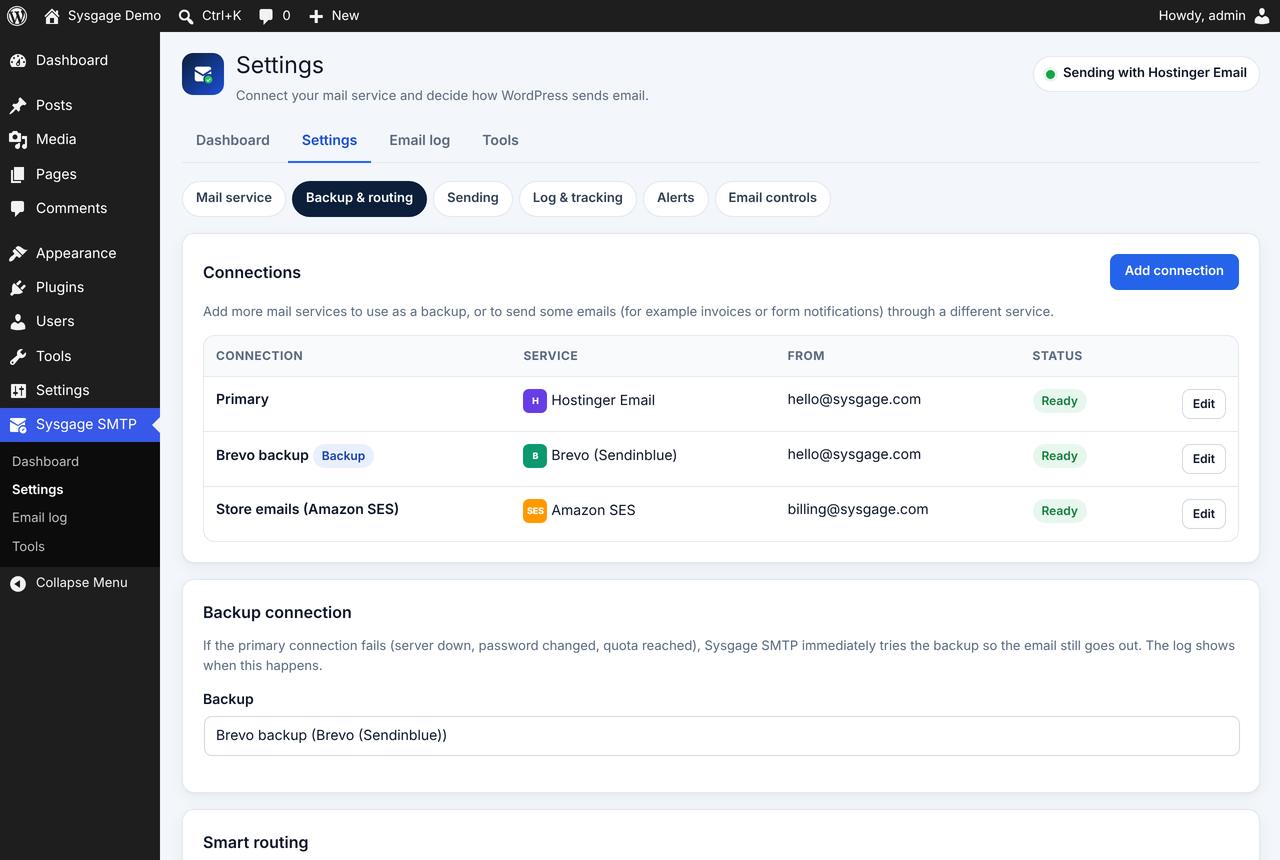
Sysgage SMTP: Backup connection and smart routing send each email through the right service
Backup connection and smart routing send each email through the right service
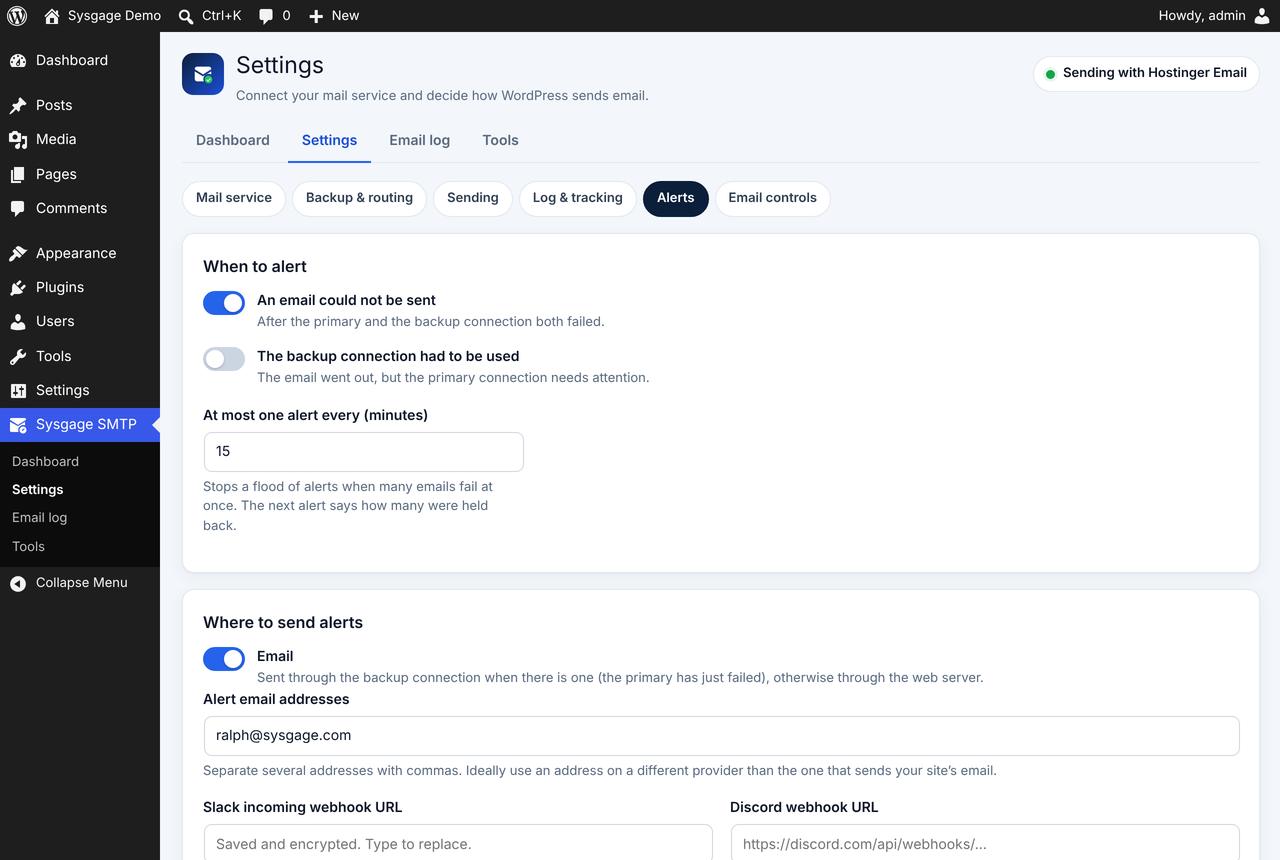
Sysgage SMTP: Failure alerts by email, Slack, Discord, Teams, webhook or SMS
Failure alerts by email, Slack, Discord, Teams, webhook or SMS

User guide

  1. Features Everything Sysgage SMTP does, feature by feature.
  2. Install and first steps Sysgage SMTP makes every email your WordPress site sends go out through your own mail service: your Hostinger Email mailbox, your domain's mailbox at another host, Google Workspace,…
  3. Choose and connect your mail service Click a tile to choose a service. Only the fields for that service are shown. Required fields have a red star; the save bar lists anything still missing.…
  4. Send a test email Go to Sysgage SMTP → Tools → Test email (or click Send a test email on the dashboard).
  5. Check your domain (SPF, DKIM, DMARC) Gmail, Yahoo and Outlook check three DNS records on your From domain before they trust an email. Go to Tools → Deliverability, check the From email and the…
  6. Add a backup connection If your main service fails (server down, password changed, quota reached), Sysgage SMTP can immediately try a second service so the email still goes out.
  7. Send some emails through a different service (smart routing) Example: send all store emails through Amazon SES and everything else through your mailbox.
  8. The email log Sysgage SMTP → Email log shows every email the site sent: status, subject, recipient, which plugin sent it, which connection it went through, opens and clicks, and when.
  9. Open and click tracking Turn on under Settings → Log & tracking.
  10. Failure alerts and the weekly summary Settings → Alerts.
  11. Turn off WordPress notification emails you do not need Settings → Email controls lets you turn off WordPress's own notification emails without code: comment notifications, the admin email change notice, new user and password emails, automatic update…
  12. Other sending options Settings → Sending
  13. Conflicts with other plugins Sysgage SMTP makes itself the mail path for the whole site. It sends with its own connection even when another plugin changes mail settings, swaps the mailer or…
  14. Keep passwords out of the database (wp-config.php) Passwords and keys are always encrypted in the database. For extra safety, or to manage settings from code, put them in wp-config.php instead (above the line "That's all,…
  15. Moving to another site (import and export) Tools → Import / export. - Download settings file saves your settings as a .json file. Passwords, API keys and sign-ins are never included. - Import replaces the…
  16. WP-CLI commands
  17. Privacy Sysgage SMTP stores the emails your site sends (if logging is on) and a hashed IP address for opens and clicks (if tracking is on). It adds suggested…
  18. Troubleshooting "Could not authenticate": the username or password is wrong. Gmail and Microsoft 365 accounts with two-step sign-in need an app password, or use the Google / Microsoft sign-in…
  19. Uninstalling Deactivating keeps all settings and the log. Deleting the plugin from the Plugins page also keeps them, unless Delete all Sysgage SMTP data when the plugin is deleted…
  20. Changelog What changed in each version of Sysgage SMTP.