Skip to content
  • LocationSan Pedro, Laguna, Philippines
  • Office hoursMon–Fri, 8:00 AM – 5:00 PM PHT (UTC+8)

Sysgage Content Types

Custom post types, taxonomies, field groups and options pages from the dashboard, without code.

Version 1.0.1Updated November 27, 2026

Version 1.0.0. Requires WordPress 6.4+ and PHP 7.4+. Tested up to WordPress 7.1.

Sysgage Content Types lets you model content in WordPress from one visual admin screen:

  • custom post types
  • custom taxonomies
  • custom field groups
  • options pages

It has the same feature set as Advanced Custom Fields Pro (repeater, flexible content, clone, gallery, options pages, Local JSON, blocks) and the same post type and taxonomy controls as CPT UI. Values are stored in ACF's format, and the plugin can provide ACF's template functions, so existing ACF themes keep working.

This guide is for buyers comparing features and for developers building with the plugin.

Screenshots

Sysgage Content Types: Content Types dashboard
Content Types dashboard
Sysgage Content Types: Post types
Post types
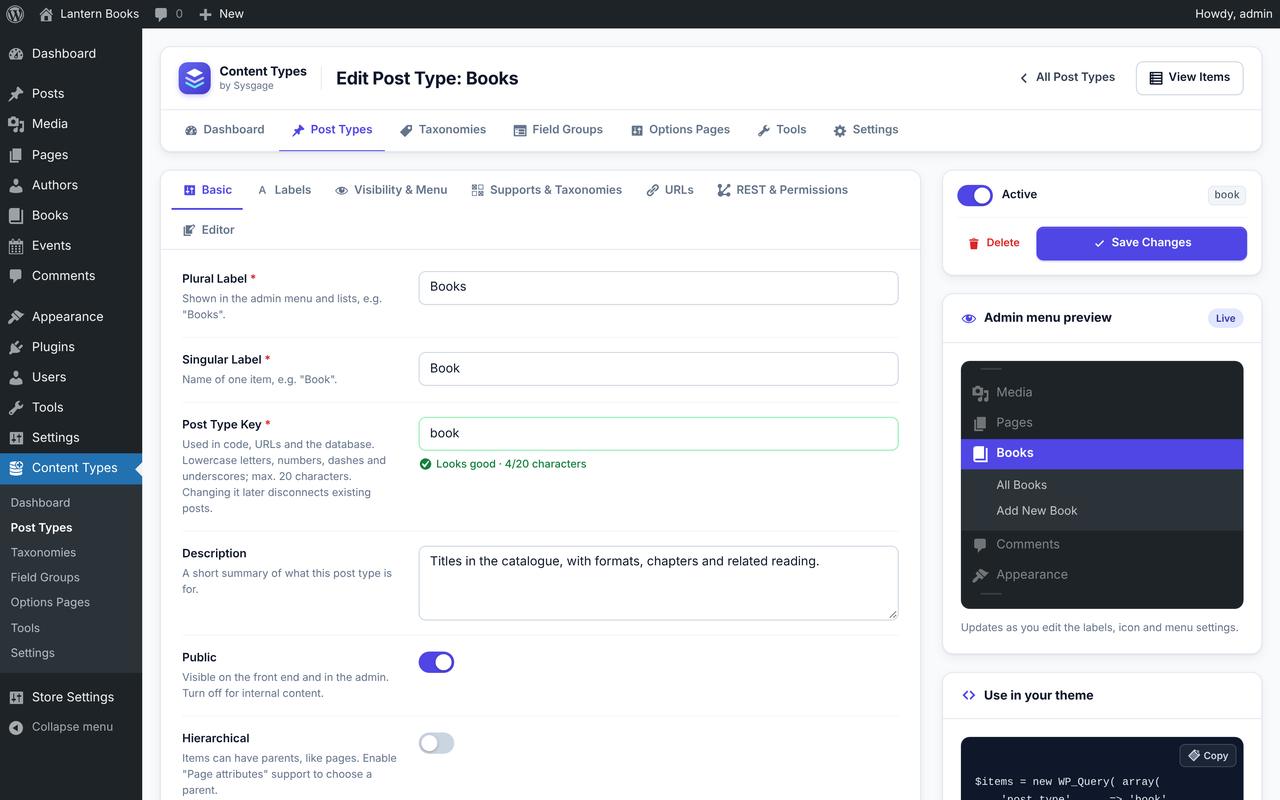
Sysgage Content Types: Post type editor
Post type editor
Sysgage Content Types: Field group builder
Field group builder
Sysgage Content Types: 31 field types
31 field types
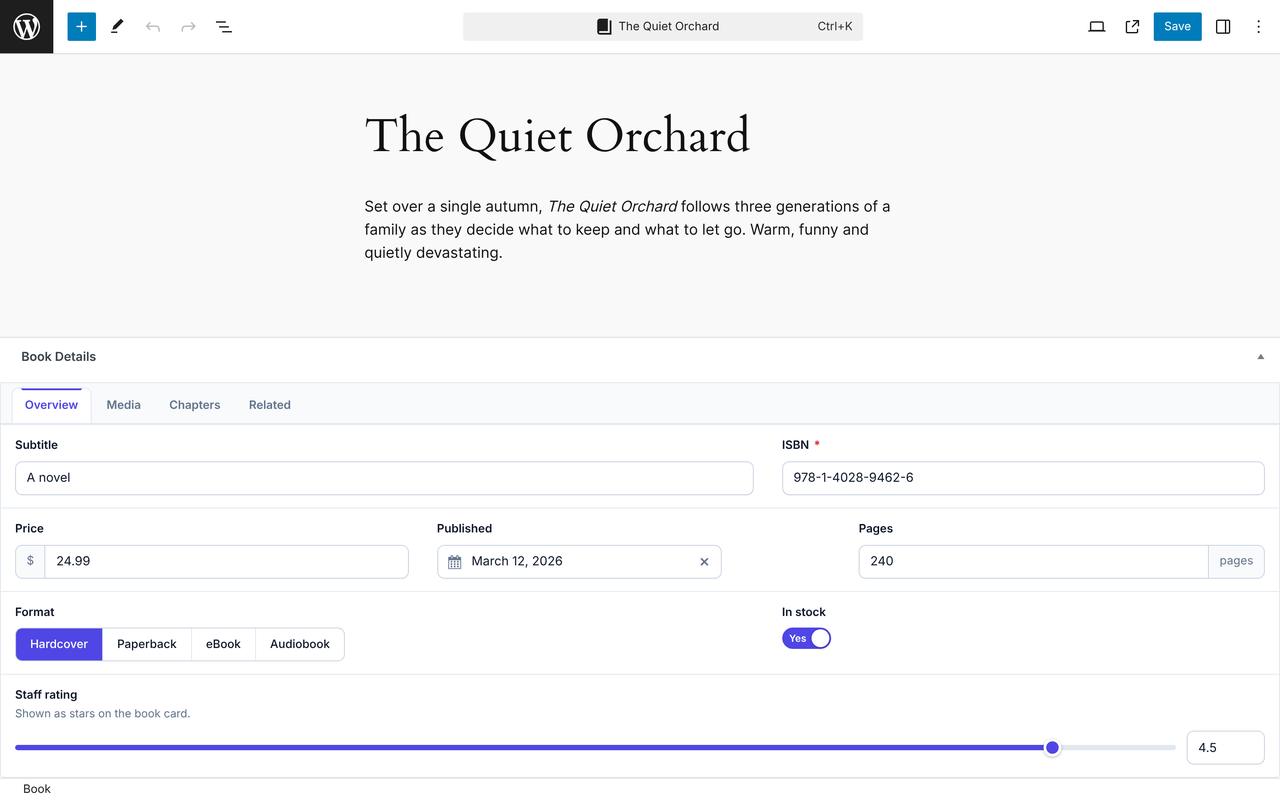
Sysgage Content Types: Custom fields on an edit screen
Custom fields on an edit screen
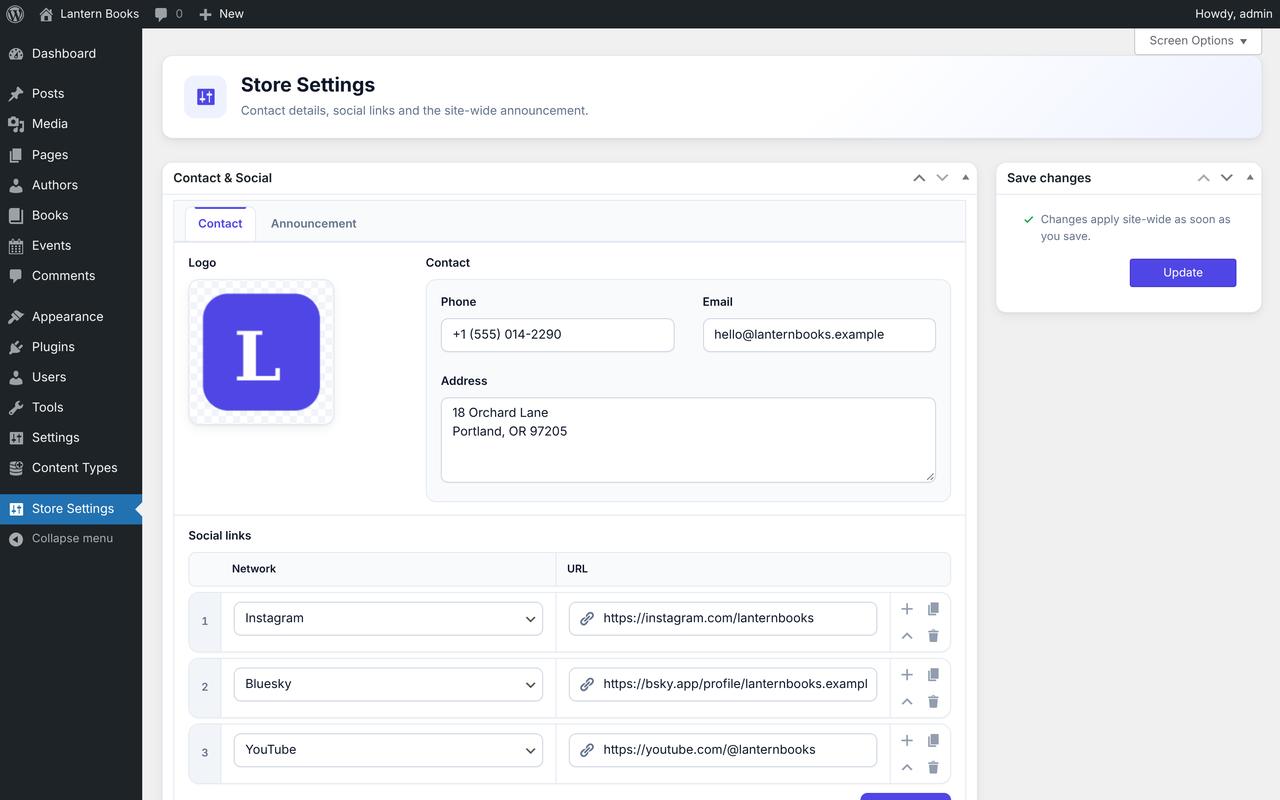
Sysgage Content Types: Options page
Options page
Sysgage Content Types: Import from ACF or a JSON file
Import from ACF or a JSON file

User guide

  1. Features Everything Sysgage Content Types does, feature by feature.
  2. Install and first steps Version 1.0.1
  3. Key ideas in two minutes
  4. Create a custom post type Example: a Books post type for a bookshop.
  5. Create a taxonomy and attach it Example: Genres for Books.
  6. Create your first field group Example: a Book Details box on Books with a subtitle, an ISBN and a cover image.
  7. Choose where fields appear Location rules decide where a field group shows up. A rule reads like a sentence: Show this field group if Post Type is equal to Book. A new…
  8. Fill in fields as an editor Open a post that matches your field group (for example Books > Add New Book). The fields appear in a box:
  9. Show field values on your site There are four ways. Pick whichever fits how your site is built.
  10. Repeaters: lists of rows A Repeater holds any number of rows, and each row has the same sub fields. Use it for chapters, speakers, FAQs, opening hours, team members and so on.
  11. Flexible content: build pages from sections Flexible Content lets editors build a page from sections (called layouts) in any order: a hero, then a text block, then a quote, and so on.
  12. Group, gallery and clone fields Group. Keeps related fields together in one box, such as an Address with street, city and postcode. In a template, sgct_get_field( 'address' ) returns all of them at…
  13. Show or hide fields with conditional logic Show a field only when it is needed. Example: show Ticket URL only when Admission is set to Paid.
  14. Options pages for site-wide settings Use an options page for values that belong to the whole site: contact details, social links, a footer text, a site-wide announcement.
  15. Import, export and Local JSON All of this is under Content Types > Tools.
  16. Moving from ACF or CPT UI From ACF or ACF PRO:
  17. Using it with Sysgage Custom Fields and the Sysgage Theme With Sysgage Custom Fields. Both Sysgage plugins can be active on the same site with no conflicts.
  18. Settings Content Types > Settings has four sections. Change what you need and click Save Settings.
  19. WP-CLI If your host offers WP-CLI, these commands help with deployments:
  20. Troubleshooting and FAQ Pages of my new post type show "Page not found" (404). - Go to Settings > Permalinks and click Save Changes once. This rebuilds WordPress's address rules. (wp…
  21. Getting help
  22. Changelog What changed in each version of Sysgage Content Types.