
All of this is under Content Types > Tools.
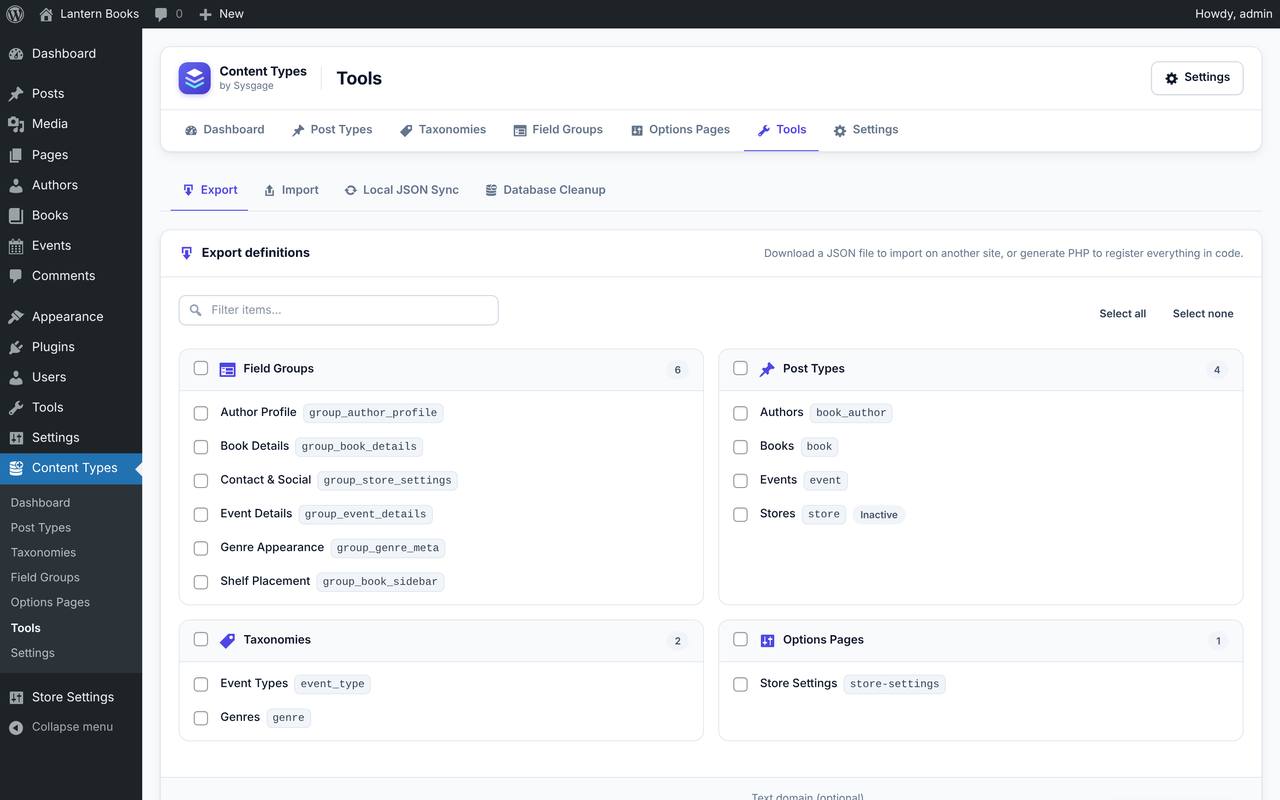
Export. Tick the post types, taxonomies, field groups and options pages you want (Select all helps), then:
- Download JSON to move them to another site, or
- Generate PHP to get code your developer can paste into a theme or plugin. Fill in Text domain (optional) to make the labels translatable.
Items registered in PHP code are shown with a PHP badge in the lists and are read-only in the admin. After adding the code, deactivate or delete the database copies to avoid having everything twice.
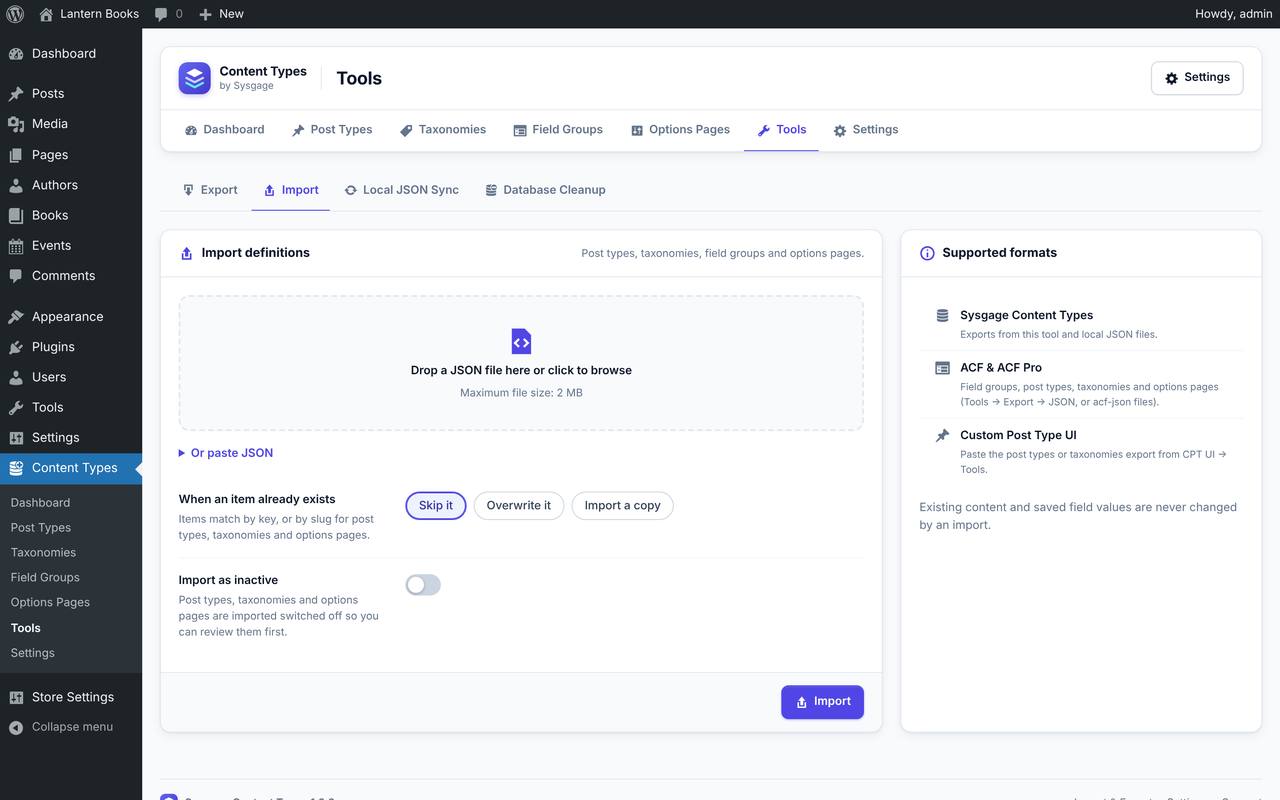
Import. Drop a JSON file on the box (or click Or paste JSON). It can come from Sysgage Content Types, ACF / ACF Pro or Custom Post Type UI. Then:
- When an item already exists: Skip it, Overwrite it or Import a copy.
- Import as inactive: post types, taxonomies and options pages arrive switched off, so you can review them first.
Click Import. A summary lists what was created, overwritten, copied, skipped or failed. Existing content and saved field values are never changed by an import.
Local JSON. Local JSON saves a copy of every post type, taxonomy, field group and options page as a .json file in your theme. Keep that folder in version control and your content model travels with your theme.
- Create a folder named
sgct-jsonin your active theme, or go to Settings > Developer and click Create folder next to JSON folder. The folder must exist and be writable by the web server; the plugin does not create it on its own. - Make sure Local JSON is on in Settings > Developer (it is by default).
- Save each item once to write its file. From then on, every save updates the file and deleting an item deletes its file.
When the files are newer than the database (for example after a deploy), field groups show a Sync available or Sync: new badge and the Local JSON Sync tab lists them. Click Review to compare the database and the JSON file, and Sync (or Sync selected / Sync all) to apply them.
Database Cleanup. When you delete fields, small reference entries stay behind in the database. Click Scan now to find them (scanning deletes nothing), review the list, and click Remove selected. Tick Also delete the stored values only if you also want the old content removed, and back up your database first.