
Example: a Book Details box on Books with a subtitle, an ISBN and a cover image.
- Go to Content Types > Field Groups and click Add Field Group (or New Field Group on the Dashboard).
- Under Field group title, type Book Details.
- Click Add Field. The Choose a field type window opens.
- Filter by category (Basic, Content, Choice, Relational, Advanced, Layout) or type in the search box ("date", "image", "repeater").
- Each type shows a short description. Pick Text and click Select Field.
- On the field's General tab, type the Field Label Subtitle. The Field Name
subtitlefills in by itself. - Click Add Field again to add a Text field labelled ISBN and an Image field labelled Cover.
- Under Location Rules, set Post Type is equal to Book (see the next section).
- Click Publish (for a new group) or Save Changes.

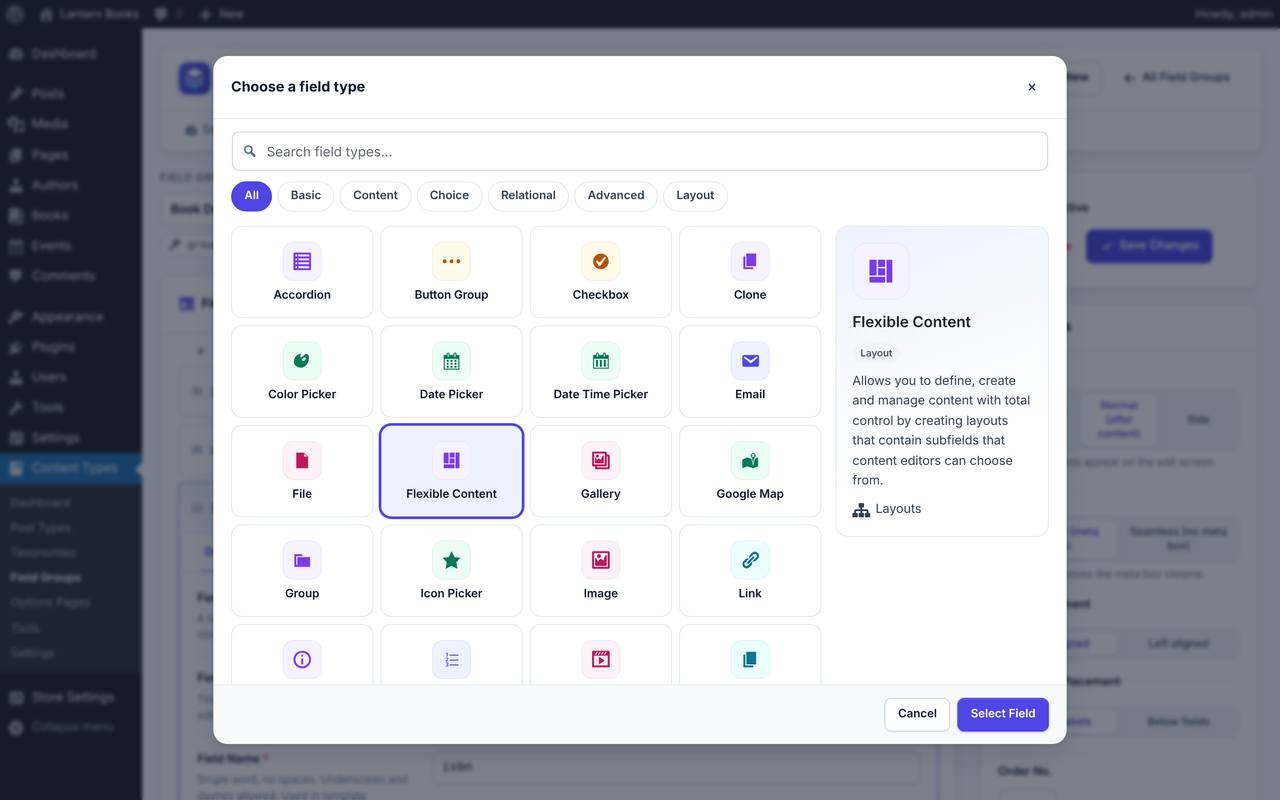
The 36 field types:
| Category | Types |
|---|---|
| Basic | Text, Text Area, Number, Range, Email, URL, Password |
| Content | Image, File, WYSIWYG Editor, oEmbed, Gallery |
| Choice | Select, Checkbox, Radio Button, Button Group, True / False |
| Relational | Link, Post Object, Page Link, Relationship, Taxonomy, User |
| Advanced | Google Map, Date Picker, Date Time Picker, Time Picker, Color Picker, Icon Picker |
| Layout | Message, Accordion, Tab, Group, Repeater, Flexible Content, Clone |
Formatted text: a Text field removes HTML when it is saved. If editors need bold text, links or line breaks, use a Text Area or a WYSIWYG Editor field instead.
The field settings tabs:
| Tab | What you set |
|---|---|
| General | Field type (with Change field type), label, name, key, Default Value (filled in on new posts), the type's own options (choices, return format and so on) and Show in REST API |
| Validation | Required, Read Only, character limits, minimum and maximum values or rows, file size and image dimensions |
| Presentation | Instructions for editors, Wrapper Attributes (Width (%), Class, ID), placeholder text, prepend and append text |
| Conditional Logic | Show the field only when other fields have certain values (section 12) |
Tips for the builder:
- Required fields get a red asterisk on the edit screen and must be filled in before saving.
- Width (%) puts fields side by side: two fields at 50% sit on one row.
- For choice fields, enter one choice per line as
value : label, for examplepaperback : Paperback. - Drag a field by its handle to reorder it, or drop it inside a repeater, group or flexible content layout. Keyboard users can focus the handle and use the arrow keys.
- Each field row has Duplicate, Move (to another list in the group, such as a repeater's sub fields) and Delete buttons.
- Change field type keeps the settings both types share. It asks before removing sub fields.
- Expand all and Collapse all help when a group has many fields.
- The builder checks your work before saving (every field needs a label and a unique name) and warns you if you try to leave with unsaved changes.
- Use Tab fields to split a long group into tabs, such as Overview, Media, Chapters and Related.
Group settings (right-hand sidebar):
- Active: switch the whole group on or off.
- Position: High (after title), Normal (after content) or Side.
- Style: Standard (meta box) or Seamless (no meta box), where the fields blend into the screen.
- Label Placement (Top aligned or Left aligned) and Instruction Placement (Below labels or Below fields).
- Order No.: groups with a lower number appear first.
- Description: shown in the field groups list.
- Show in REST API: turn on if an app or headless front end needs these values.
- Hide on Screen: hide parts of the edit screen you do not need, such as the excerpt, comments or featured image.
Deleting a field removes it from the group, but the content already saved in it stays in the database. Tools > Database Cleanup can tidy it up later (section 14).